AI Features
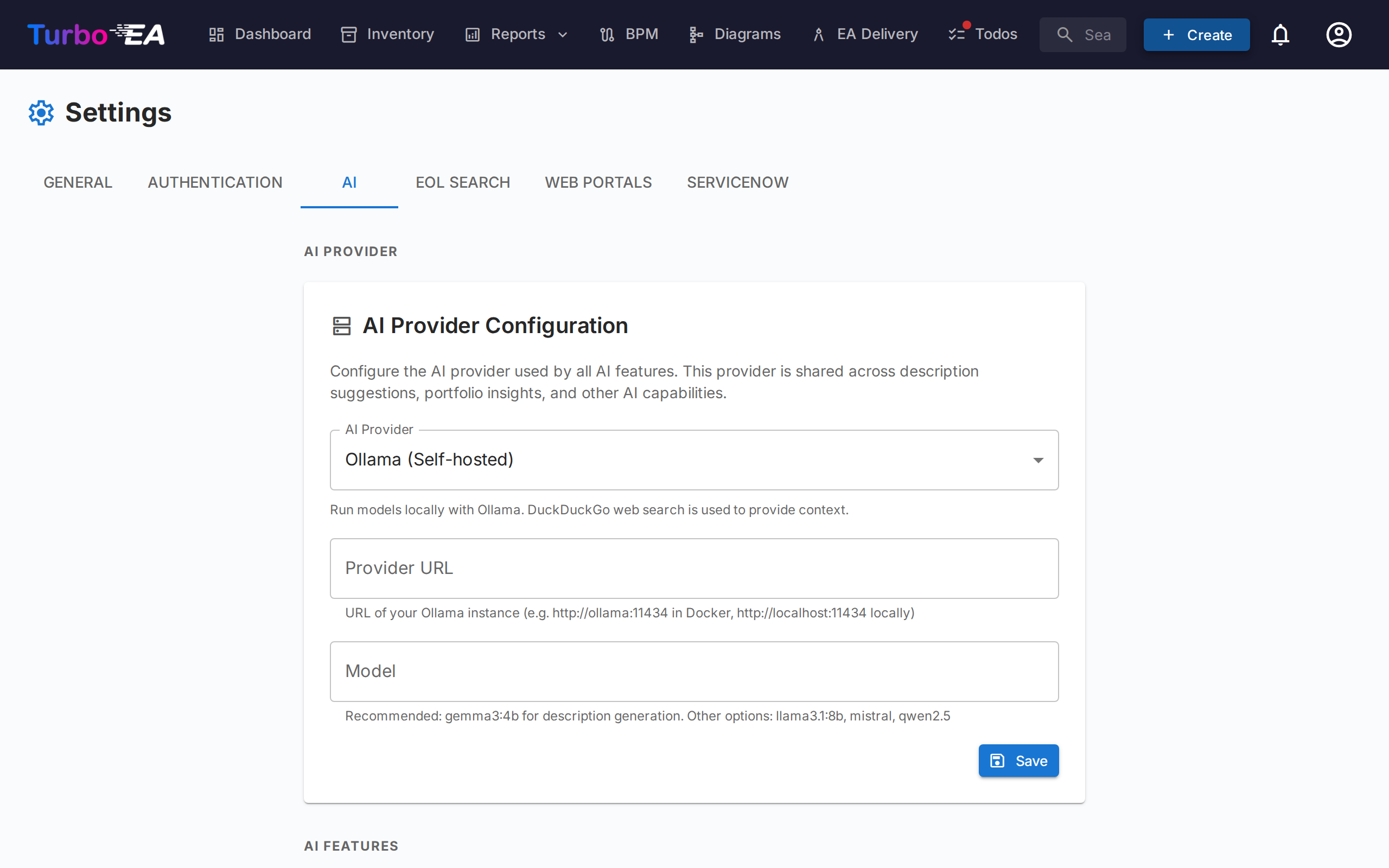
Turbo EA includes AI-powered features that use a Large Language Model (LLM) to assist users. All AI features share a single AI provider configuration — set up once, use everywhere.
Currently available AI features:
- Description Suggestions — Automatically generate card descriptions using web search + LLM
- Portfolio Insights — Generate on-demand strategic analysis of the application portfolio
All features are optional and fully admin-controlled. They can run entirely on your own infrastructure using a local Ollama instance, or connect to commercial LLM providers.
How It Works
The AI suggestion pipeline has two steps:
-
Web search — Turbo EA queries a search provider (DuckDuckGo, Google Custom Search, or SearXNG) using the card's name and type as context. For example, an Application card named "SAP S/4HANA" generates a search for "SAP S/4HANA software application".
-
LLM extraction — The search results are sent to the configured LLM along with a type-aware system prompt. The model produces a description, a confidence score (0–100%), and lists the sources it used.
The result is displayed to the user with:
- An editable description they can review and modify before applying
- A confidence badge showing how reliable the suggestion is
- Source links so the user can verify the information
Supported LLM Providers
| Provider | Type | Configuration |
|---|---|---|
| Ollama | Self-hosted | Provider URL (e.g., http://ollama:11434) + model name |
| OpenAI | Commercial | API key + model name (e.g., gpt-4o) |
| Google Gemini | Commercial | API key + model name |
| Azure Hosted OpenAI | Commercial | API key + Azure resource endpoint + deployment name + API version (default 2025-01-01) |
| OpenRouter | Commercial | API key + model name |
| Anthropic Claude | Commercial | API key + model name |
| Amazon Bedrock | Your AWS account | AWS region + model or inference profile ID; IAM role, or an optional access key |
Commercial providers require an API key, which is stored encrypted in the database using Fernet symmetric encryption. Amazon Bedrock is the exception: it authenticates with the IAM role of the container by default, so there is no key to store or rotate.
Search Providers
| Provider | Setup | Notes |
|---|---|---|
| DuckDuckGo | No configuration needed | Default. Zero-dependency HTML scraping. No API key required. |
| Google Custom Search | Requires API key and Custom Search Engine ID | Enter as API_KEY:CX in the search URL field. Higher quality results. |
| SearXNG | Requires a self-hosted SearXNG instance URL | Privacy-focused meta-search engine. JSON API. |
Setup
Option A: Bundled Ollama (Docker Compose)
The simplest way to get started. Turbo EA includes an optional Ollama container in its Docker Compose configuration.
1. Start with the AI profile:
docker compose --profile ai up --build -d
2. Enable auto-configuration by adding these variables to your .env:
AI_AUTO_CONFIGURE=true
AI_MODEL=gemma3:4b          # or mistral, llama3:8b, etc.
On startup, the backend will:
- Detect the Ollama container
- Save the connection settings to the database
- Pull the configured model if it is not already downloaded (runs in the background, may take a few minutes)
3. Verify in the admin UI: go to Settings > AI Suggestions and confirm the status shows as connected.
Option B: External Ollama Instance
If you already run Ollama on a separate server:
- Go to Settings > AI Suggestions in the admin UI.
- Select Ollama as the provider type.
- Enter the Provider URL (e.g.,
http://your-server:11434). - Click Test Connection — the system will show available models.
- Select a model from the dropdown.
- Click Save.
Option C: Commercial LLM Provider
- Go to Settings > AI Suggestions in the admin UI.
- Select your provider (OpenAI, Google Gemini, Azure OpenAI, OpenRouter, or Anthropic Claude). For Amazon Bedrock, see Option D below.
- Enter your API key — it will be encrypted before storage.
- Enter the model name (e.g.,
gpt-4o,gemini-pro,claude-sonnet-4-20250514). - Click Test Connection to verify.
- Click Save.
Option D: Amazon Bedrock
Models run inside your own AWS account, so prompts never leave the account boundary and there is no third-party API key to manage.
1. Enable model access in the AWS Bedrock console, under Model access, for the region you intend to use. Access is granted per model; some vendors ask for a one-time use-case description.
2. Grant the permissions. Turbo EA uses the IAM role of the container (an ECS task role, an EKS service account, or an EC2 instance profile). Attach this policy to it:
{
  "Version": "2012-10-17",
  "Statement": [
    {
      "Effect": "Allow",
      "Action": [
        "bedrock:InvokeModel",
        "bedrock:InvokeModelWithResponseStream",
        "bedrock:ListFoundationModels",
        "bedrock:ListInferenceProfiles"
      ],
      "Resource": "*"
    }
  ]
}
3. Configure Turbo EA:
- Go to Settings > AI in the admin UI.
- Select Amazon Bedrock as the provider.
- Enter the AWS Region — for example
eu-central-1. This field takes a region, not a URL. - Leave the API Key field empty to use the IAM role. Outside AWS, enter
ACCESS_KEY_ID:SECRET_ACCESS_KEYinstead; it is encrypted before storage like any other provider key. - Click Test Connection. It lists every model and inference profile the region offers.
- Pick the model from the list and click Save.
Newer models need an inference profile ID
Recent models — Claude Sonnet 4 among them — cannot be called by their plain model ID. Bedrock answers with a ValidationException saying on-demand throughput is not supported. Use the regional inference profile ID instead, which carries a geography prefix such as eu., us. or apac.: eu.anthropic.claude-sonnet-4-20250514-v1:0. Test Connection lists the profile IDs first for this reason.
Configuration Options
Once connected, you can fine-tune the AI features in Settings > AI. The settings page is split into three sections:
- AI Provider — Shared provider configuration (type, URL, API key, model)
- AI Description Suggestions — Enable/disable description suggestions and choose which card types support them
- Portfolio Insights — Enable/disable AI-driven insights in the portfolio report
Enable/Disable per Card Type
Not every card type benefits equally from AI suggestions. You can enable or disable AI for each type individually. For example, you might enable it for Application and IT Component cards but disable it for Organization cards where descriptions are company-specific.
Leaving every card type unchecked is not the same as switching the feature off — it means no per-type restriction, so the suggestion button appears on all card types.
Search Provider
Choose which web search provider to use for gathering context before sending to the LLM. DuckDuckGo works out of the box with no configuration. Google Custom Search and SearXNG require additional setup (see the Search Providers table above).
Model Selection
For Ollama, the admin UI shows all models currently downloaded on the Ollama instance. For commercial providers, enter the model identifier directly.
Using AI Suggestions
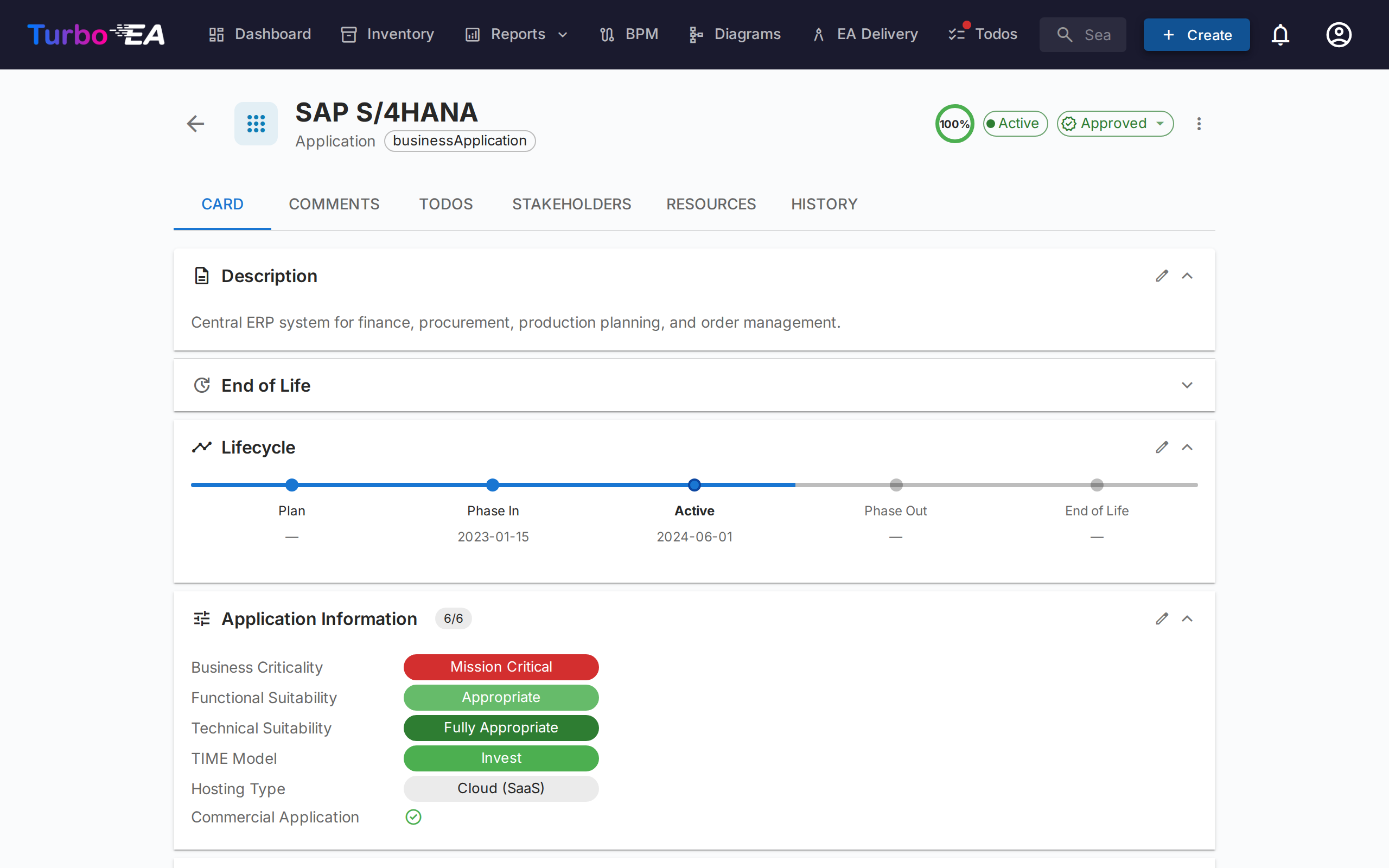
Once configured by an admin, users with the ai.suggest permission (granted to Admin, BPM Admin, and Member roles by default) will see a sparkle button on card detail pages and in the create card dialog.
On an Existing Card
- Open any card's detail view.
- Click the sparkle button (visible next to the description section when AI is enabled for that card type).
- Wait a few seconds for the web search and LLM processing.
- Review the suggestion: read the generated description, check the confidence score, and verify the source links.
- Edit the text if needed — the suggestion is fully editable before applying.
- Click Apply to set the description, or Dismiss to discard it.
When Creating a New Card
- Open the Create Card dialog.
- After entering the card name, the AI suggest button becomes available.
- Click it to pre-fill the description before saving.
Application-specific Suggestions
For Application cards, the AI can also suggest additional fields when it finds evidence in web search results:
- Commercial Application — toggled on if pricing, license information, or sales contact pages are found
- Hosting Type — suggested as On-Premise, Cloud (SaaS), Cloud (PaaS), Cloud (IaaS), or Hybrid based on the product's deployment model
These fields are only suggested when the AI finds clear evidence — they are not speculated. The user can review and adjust the values before applying.
Note
Apart from Application-specific fields, AI suggestions primarily generate the description field. Custom fields for other card types are not yet covered.
Portfolio Insights
When enabled, the Application Portfolio report displays an AI Insights button. Clicking it sends a summary of the current portfolio view — grouping, attribute distributions, and lifecycle data — to the configured LLM, which returns 3–5 actionable insights.
Insights focus on:
- Concentration risks — too many applications in one group or state
- Modernisation opportunities — based on lifecycle and hosting data
- Portfolio balance — diversity across subtypes, groups, and attributes
- Lifecycle concerns — applications nearing end-of-life
- Cost or complexity drivers — based on attribute distributions
The insights panel is collapsible and can be regenerated at any time to reflect changes in filters or grouping.
Enabling Portfolio Insights
- Go to Settings > AI > Portfolio Insights.
- Toggle Portfolio insights on.
- Click Save.
Note
Portfolio insights require the AI provider to be configured first. The feature uses the same provider and model as description suggestions.
Permissions
| Role | Access |
|---|---|
| Admin | Full access: configure AI settings, use suggestions, and generate portfolio insights |
| BPM Admin | Use suggestions and generate portfolio insights |
| Member | Use suggestions and generate portfolio insights |
| Viewer | No access to AI features |
Two permission keys control AI access:
ai.suggest— Controls access to AI description suggestionsai.portfolio_insights— Controls access to AI portfolio insights
Custom roles can be granted these permissions through the Roles administration page.
Privacy and Security
- Self-hosted option: When using Ollama, all AI processing happens on your own infrastructure. No data leaves your network.
- Encrypted API keys: Commercial provider API keys are encrypted with Fernet symmetric encryption before being stored in the database.
- Search-only context: The LLM receives web search results and the card's name/type — not your internal card data, relationships, or other sensitive metadata.
- User control: Every suggestion must be reviewed and explicitly applied by a user. AI never modifies cards automatically.
- Your own AWS account: With Amazon Bedrock, inference runs inside your AWS account. Prompts stay within the account boundary and are governed by your own service control policies.
Troubleshooting
| Issue | Solution |
|---|---|
| AI suggest button not visible | Check that AI is enabled for the card type in Settings > AI Suggestions, and that the user has the ai.suggest permission. |
| "AI not configured" status | Go to Settings > AI Suggestions and complete the provider setup. Click Test Connection to verify. |
| Model not appearing in dropdown | For Ollama: ensure the model is downloaded (ollama pull model-name). For commercial providers: enter the model name manually. |
| Slow suggestions | LLM inference speed depends on hardware (for Ollama) or network latency (for commercial providers). Smaller models like gemma3:4b are faster than larger ones. |
| Low confidence scores | The LLM may not find enough relevant information via web search. Try a more specific card name, or consider using Google Custom Search for better results. |
| Connection test fails | Verify the provider URL is reachable from the backend container. For Docker setups, ensure both containers are on the same network. |
| Bedrock returns "AccessDeniedException" | Two different causes: the IAM role is missing the bedrock:InvokeModel permission, or model access has not been enabled for that model in the Bedrock console. Check both. |
| Bedrock says on-demand throughput is not supported | The model is only reachable through a regional inference profile. Run Test Connection and pick an ID prefixed eu., us. or apac.. |
Environment Variables
These environment variables provide initial AI configuration. Once saved through the admin UI, the database settings take precedence.
| Variable | Default | Description |
|---|---|---|
AI_PROVIDER_URL |
(empty) | Ollama-compatible LLM provider URL |
AI_MODEL |
(empty) | LLM model name (e.g., gemma3:4b, mistral) |
AI_SEARCH_PROVIDER |
duckduckgo |
Web search provider: duckduckgo, google, or searxng |
AI_SEARCH_URL |
(empty) | Search provider URL or API credentials |
AI_AUTO_CONFIGURE |
false |
Auto-enable AI on startup if provider is reachable |