Web Portals
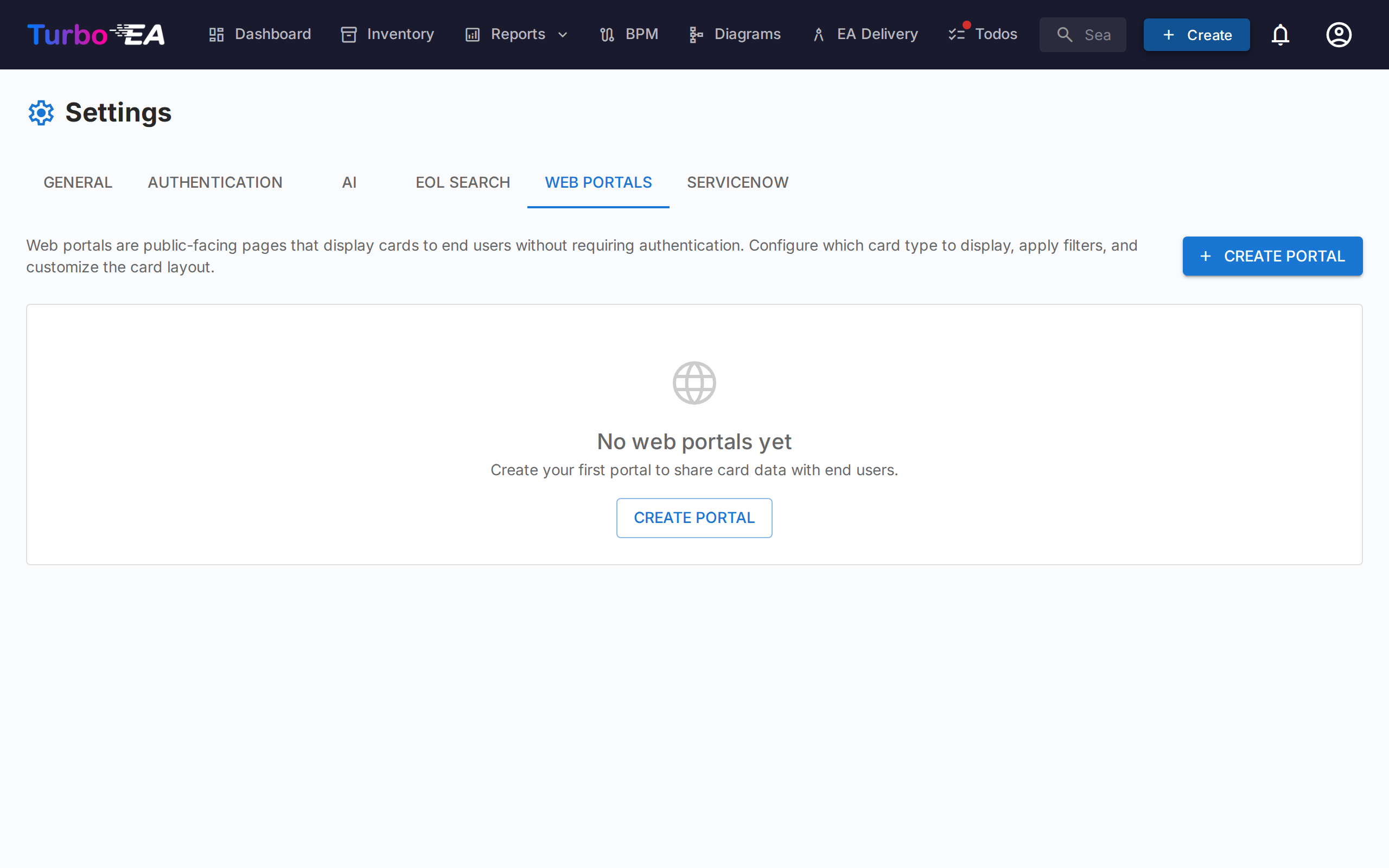
The Web Portals feature (Admin > Settings > Web Portals) lets you create public, read-only views of selected card data — accessible without authentication via a unique URL.
Use Case
Web portals are useful for sharing architecture information with stakeholders who don't have a Turbo EA account:
- Technology catalog — Share the application landscape with business users
- Service directory — Publish IT services and their owners
- Capability map — Provide a public view of business capabilities
Portal Type
Each portal publishes one of three things, chosen with Portal type:
| Type | What visitors see |
|---|---|
| Card list | A searchable, filterable grid of cards — the classic portal, configured with the properties below. |
| PPM portfolio board | The read-only PPM portfolio board — timeline, health indicators and budget-versus-actual for every active initiative. |
| Process navigator | The read-only Process House — your business process hierarchy, and each process's published BPMN flow. |
PPM portfolio portals
Selecting PPM portfolio board turns the portal into an executive view of your project portfolio, available on a public link with no account, no licence and no login. It exists for the common case where leadership wants portfolio visibility but will not maintain another set of credentials.
The board is always scoped to Initiative cards, so the card-type picker is locked. The subtypes and tags filters still apply, which is how you publish a single programme rather than the whole portfolio.
Visitors get the same board your team uses inside Turbo EA: the quarterly timeline, the schedule/cost/scope indicators, the CapEx and OpEx bars, grouping by any related card type, and the status-report overview that appears when you hover the Last Report date. Clicking an initiative leads into Turbo EA behind the normal sign-in — after signing in you land on the initiative you clicked.
Three switches control what the published board reveals:
| Switch | Default | Publishes |
|---|---|---|
| Show budget and actual spend | On | The CapEx and OpEx bars and the total-budget figure |
| Show status report commentary | On | Summary, accomplishments and next steps in the hover overview. The report date and health indicators are always shown |
| Show project manager names | Off | The names of project managers and report authors. Off by default because names are personal data |
The board also opens on a grouping and subtype of your choosing:
| Setting | Default | Effect |
|---|---|---|
| Opens grouped by | Organization | Which grouping the board shows first |
| Opens showing subtype | All | Which subtype is selected first |
Opens grouped by also accepts an Initiative subtype, which opens the board with one group per initiative of that subtype (see Project Portfolio Management). A subtype that the portal's own subtype filter excludes is not offered: the portal would publish none of those initiatives, so every row would land under Ungrouped.
Both are only a starting point — a visitor can change either control, and nothing is remembered, so reopening the portal returns to what you configured here. This is separate from the subtype filter above, which decides which initiatives are published at all.
Note
Some things are never published, whatever you choose: cost fields stored on the Initiative card itself, user email addresses, and everything on the initiative detail page — work packages, milestones, risks, tasks and report history all stay behind the login.
A portfolio portal can be SSO-gated like any other portal. Turning the PPM module off in Admin > Settings takes every portfolio portal dark immediately; you do not have to unpublish them one by one.
Process navigator portals
Selecting Process navigator turns the portal into a read-only view of your Process House, available on a public link with no account, no licence and no login. It exists for the people who most need to read how the organisation works and are least likely to have a seat: new joiners, auditors, front-line staff and external partners.
The board is always scoped to Business Process cards, so the card-type picker is locked. The subtypes and tags filters still apply, which is how you publish one branch of the house rather than all of it.
Visitors get the same house your team uses inside Turbo EA: the process hierarchy grouped into rows by process type, the level slider, zoom and breadcrumbs, search, the colour overlays, the organization filter and the column-count control. Opening a process shows its overview, its steps, and its published BPMN flow — full screen, pan and zoom, exactly as your team sees it.
Two switches and two opening settings control the published house:
| Setting | Default | Effect |
|---|---|---|
| Show linked systems on each step | Off | The names of the applications, data objects, IT components and organizations linked to each process step. Off by default because it reveals which systems run your processes |
| Opens at level | 2 | How deep the hierarchy is shown first |
| Opens coloured by | Process type | Which attribute colours the boxes first |
The last two are only a starting point — a visitor can change either control, and nothing is remembered, so reopening the portal returns to what you configured here.
Note
Some things are never published, whatever you choose: the applications, data objects and costs behind a process, the Process × Application matrix and the dependency view, and any BPMN that has not been published — drafts, pending, archived and withdrawn revisions all stay behind the login.
Unlike a portfolio portal, whose rows lead into Turbo EA behind the normal sign-in, a process navigator portal links nowhere. It is a dead end by design: a house published for readers without accounts should answer "how do we do this" without presenting a door they cannot open.
A process navigator portal can be SSO-gated like any other portal. Turning the BPM module off in Admin > Settings takes every process portal dark immediately; you do not have to unpublish them one by one.
Creating a Portal
- Navigate to Admin > Settings > Web Portals
- Click + New Portal
- Configure the portal:
| Field | Description |
|---|---|
| Name | Display name for the portal |
| Slug | URL-friendly identifier (auto-generated from name, editable). The portal will be accessible at /portal/{slug} |
| Portal Type | Card list, or the read-only PPM portfolio board (see Portal Type) |
| Card Type | Which card type to display (locked to Initiative for a portfolio portal) |
| Subtypes | Optionally restrict to specific subtypes |
| Who can view this portal | Access mode — Anyone with the link or Sign in with SSO (see Access Protection) |
| Show Logo | Whether to display the platform logo on the portal |
Configuring Visibility
For each portal, you control exactly which information is visible. There are two contexts:
List View Properties
What columns/properties appear in the card list:
- Built-in properties: description, lifecycle, tags, data quality, approval status
- Custom fields: Each field from the card type's schema can be individually toggled
The data quality bar is the card's completeness score — how many of its fields are filled
in — not project progress. To publish an Initiative's real progress, add a Percentage field
to the Initiative type, fill it with a calculation over ppm.completion, and tick that field
here; the recipe is in Calculations.
Detail View Properties
What information appears when a visitor clicks on a card:
- Same toggle controls as the list view, but for the expanded detail panel
Access Protection
Each portal has an access mode that controls who can open it:
| Mode | Behaviour |
|---|---|
| Anyone with the link | The portal is world-readable once published — anyone who knows the URL can view it. This is the default and the historical behaviour. |
| Sign in with SSO | Visitors must authenticate with your organization's identity provider before any portal data is shown. |
SSO mode reuses the single sign-on you've already configured under Admin > Settings > Authentication. It is designed for protecting portals without managing extra users:
- Visitors sign in through your identity provider, but are never provisioned as Turbo EA users — no account is created, no role is assigned, and no license is consumed.
- Transparent sign-in. A visitor who already has an active session with your identity provider is signed in automatically, with no prompt — they just see the portal. Only when interaction is required (no active session yet) do they get a one-click Sign in button.
- The visitor gets a short-lived, per-portal session. Nothing is shown until sign-in completes.
- Optionally set an Allowed email domains list to restrict access to specific domains (e.g.
company.com). Leave it empty to allow any user your identity provider authenticates.
Note
Sign in with SSO is only selectable once single sign-on is configured. It reuses the same identity-provider redirect URI as normal login (/auth/callback), so no extra provider configuration is needed — if login works, portal SSO works.
Unpublishing a portal immediately revokes access in every mode.
Portal Access
Portals are accessed at:
https://your-turbo-ea-domain/portal/{slug}
For a public portal no login is required. For an SSO-gated portal, visitors are prompted to sign in first. In both cases visitors can browse the card list, search, and view card details — but only the properties you've enabled are shown.
Note
Portals are read-only. Visitors cannot edit, comment, or interact with cards. Sensitive data (stakeholders, comments, history) is never exposed on portals.