Inventory
The Inventory is the heart of Turbo EA. Here all cards (components) of the enterprise architecture are listed: applications, processes, business capabilities, organizations, providers, interfaces, and more.
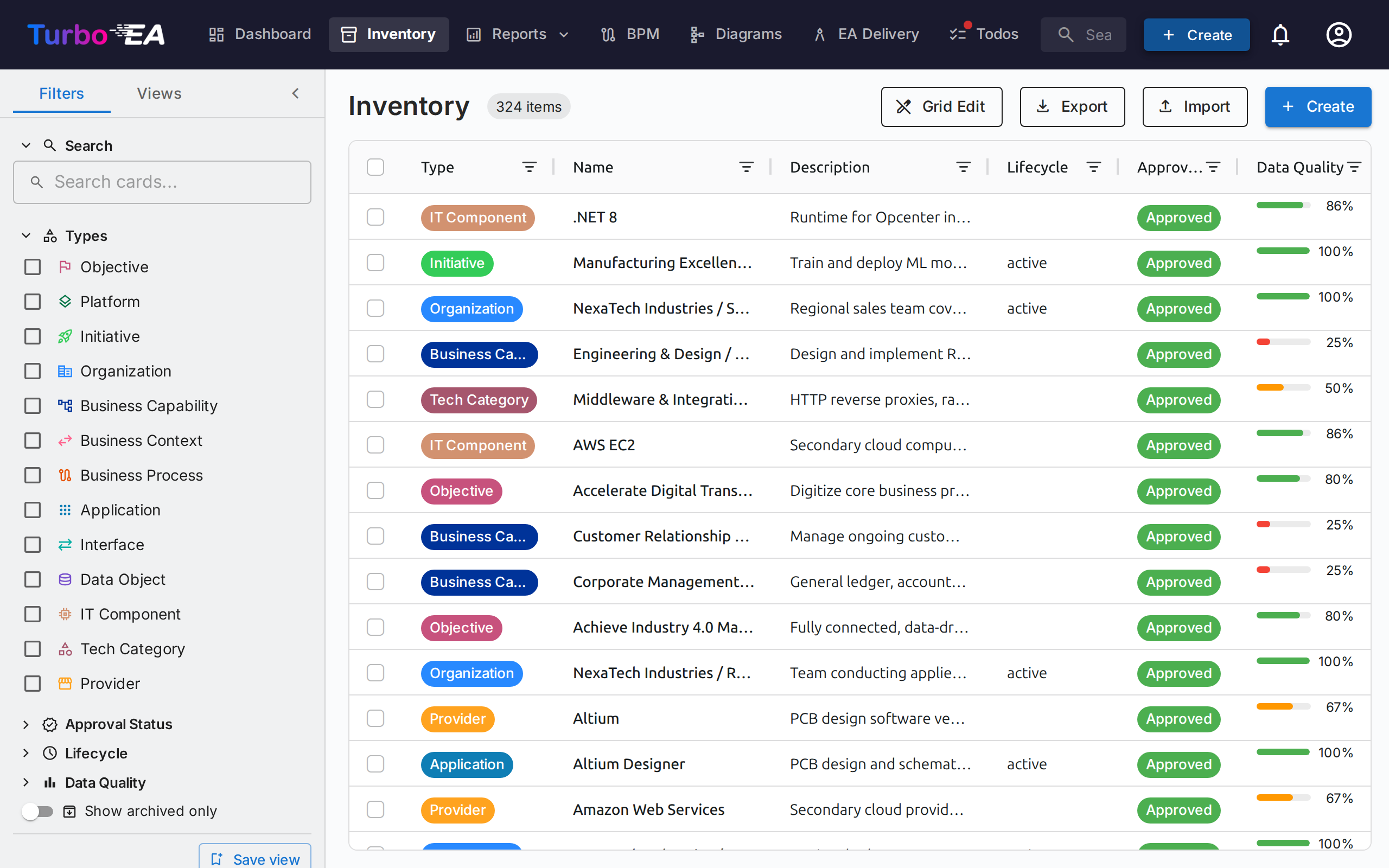
Inventory Screen Structure
Left Filter Panel
The left sidebar panel allows you to filter cards by different criteria:
- Search — Free text search across card names, from the very first letter. Best matches come first: exact names, then names starting with what you typed, then names where it starts a word, then the rest. Every search box in Turbo EA orders results this way — the global search (Ctrl+K / ⌘K), each card picker, the Risk Register, Decisions and published portals — unless you have chosen a sort of your own, which always wins. A card's alias and its description are matched too, so a card is found by the name your organisation actually uses for it — and an alias that matches exactly ranks as highly as a name that does
- Types — Filter by one or more card types, grouped by the architecture layer each type belongs to: Strategy & Transformation (Objective, Platform, Initiative), Business Architecture (Organization, Business Capability, Business Context, Business Process), Application & Data (Application, Interface, Data Object) and Technical Architecture (IT Component, Tech Category, Provider). A type your administrator places in a layer of its own gets its own heading after those four, and any type with no layer set is listed last under Uncategorized
- Subtypes — When a type is selected, filter further by subtype (e.g., Application → Business Application, Microservice, AI Agent, Deployment)
- Approval Status — Draft, Approved, Broken, or Rejected
- Lifecycle — Filter by lifecycle phase: Plan, Phase In, Active, Phase Out, End of Life
- Data Quality — Band filtering (multi-select): Complete (≥80%), Partial (40–79%), Minimal (below 40%). Same bands the Data Quality report charts, so clicking a bar segment there lands here.
- Orphaned — Only cards with no relation in either direction. Evaluated server-side, so it works with no card type selected.
- Stale — Only cards not updated in the last 90 days. Both mirror the Data Quality report's KPI tiles, so clicking a tile there lands here.
- End of life — For Applications and IT Components, filter by the support status Turbo EA resolves from the EOL link on each card: End of Life, Approaching, Supported or Unknown. (empty) lists the cards with nothing recorded at all. The matching End of life column shows the date beside a status dot, and sorts and exports as a date.
- Link type — When a single hierarchical card type is selected and an administrator has defined link types for it, filter by the type of link each card has to its parent — for example the subsidiaries that are commercial rather than sales. (empty) lists the cards whose link carries no type, and the top-level cards, since neither has one recorded. The matching Link type column shows the value as a coloured chip and is editable in grid edit mode.
- Tags — Filter by tags from any tag group
- Relations — Filter by related cards across relation types
- Custom attributes — Filter by values in custom fields (text search, select options)
- Show archived only — Toggle to view archived (soft-deleted) cards
- Clear all — Reset all active filters at once
Find cards with no value. The Subtype, Lifecycle, Tags, Relations, and single/multi-select custom attribute filters each include an (empty) option. Select it to list only the cards that have no value for that field — for example, every card with no lifecycle set. It can be combined with normal values (matching either) and across filters (matching all).
An active filter count badge shows how many filters are currently applied.
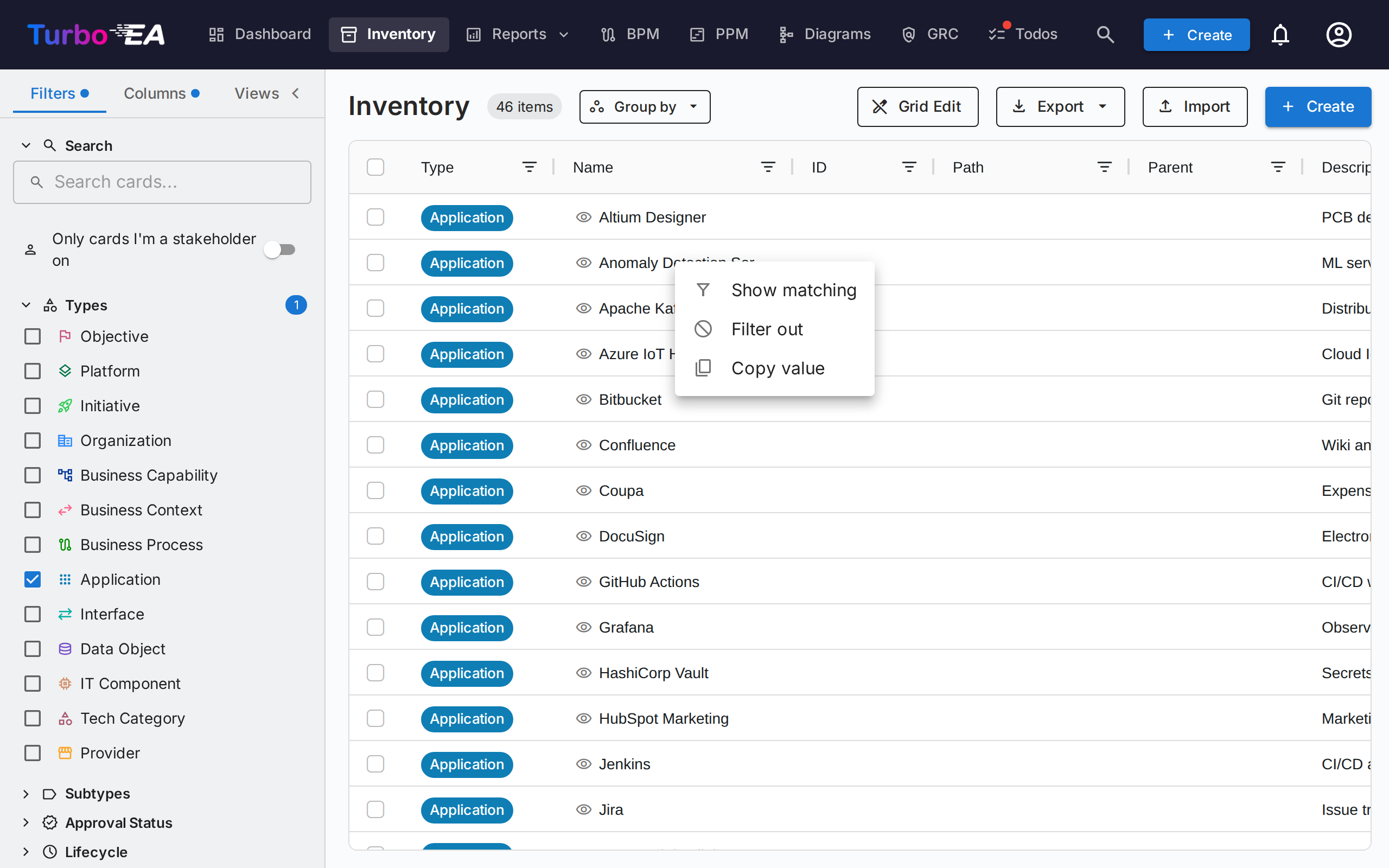
Cell Actions
Right-click any cell in the grid (long-press on a touch device) to open a context menu of quick actions on whatever is under the cursor, similar to ServiceNow:
- Preview card — open the card the cell names in the side panel, without leaving the grid; the panel leaves the grid usable, so you can keep scrolling, filtering and clicking other rows while it is open, and close it with its close button
- Show matching — keep only the rows whose value equals the clicked cell's
- Filter out — hide the rows whose value equals the clicked cell's
- Copy value — copy the cell text to the clipboard
- Clear column filter — remove that column's filter (shown only while one is active)
On a multi-valued cell (tags, relations, stakeholders, multi-select attributes) the menu first lists the individual values, so you can filter on one of them or on the entire cell. Preview card appears on every cell that names a card — the Name column (the row's own card), the Parent column, and the relation columns — and when the cell names several cards it lists them the same way, so you pick the one to open. These filters land in the grid's own column filters: they combine with the sidebar filters, count into the Clear filters toolbar button, and persist with your view. The same menu is available on every grid in Turbo EA — Decisions, Risk Register, Compliance, and the admin grids. On the Resources grid, where filtering happens on the server, Show matching drives the sidebar filters directly, so it narrows the whole result set rather than just the page you are looking at. When the column has a matching filter in the left panel — card type, subtype, lifecycle, approval status or a single-select attribute — Show matching selects that value in the panel too, and Clear clears both, so a saved view can never carry a panel filter and a column filter that disagree. Editing the filter in the panel afterwards simply takes over.
Columns Tab
The Columns tab in the side panel lets you choose which additional columns to display in the grid. Available columns change dynamically based on the selected card types:
- Single type selected — All attribute fields defined for that type are available, plus relation columns and metadata columns
- Multiple types selected — Only fields that are common across all selected types are available
- No type selected — A hint message prompts you to select a card type first
Columns are grouped into five categories:
| Category | Description |
|---|---|
| Default columns | Always-on columns: Type, Name, Path, Description, Subtype, Lifecycle, Approval Status, Data Quality. Untick any of these to hide them from the grid — useful when tightening a saved view to just the columns you actually use. |
| Metadata | Created, Modified, Created by, Modified by. Modified is when the card's content last changed — by a person or an integration, never when the system last recomputed a score — so you can filter it by date to find cards due for an owner review. |
| Attributes | Custom fields defined in the metamodel (text, number, cost, date, select, etc.) |
| Relations | Related card types (e.g., Applications linked to a Business Capability) |
| Stakeholders | One column per stakeholder role defined for the selected card type (e.g. Stakeholders: Responsible), showing the assigned users as chips. In grid edit mode, double-click a cell to assign or remove users for that role directly from the grid (requires the manage stakeholders permission). |
The Parent column shows just the card directly above it in the hierarchy, where Path shows the whole chain. In grid edit mode, double-click a Parent cell to move the card somewhere else, or clear the field to move it to the top level. The column is editable only when the grid is filtered to a single card type that supports hierarchy. If a move is refused — because it would create a loop, collide with a same-named card under the target, or exceed the maximum capability depth — the reason appears at the bottom of the screen and the cell reverts.
The Path column shows the card's hierarchy breadcrumb (e.g. North America / Sales / Inside Sales) without including the card's own name, so you can keep both Name and Path on screen at once.
The Logo column shows each card's own logo, or its type icon where none has been set, so a landscape can be scanned by product mark rather than by name. It is offered only for card types that allow logos (out of the box, Application and IT Component), is switched off by default, and makes the rows taller while it is shown so the marks stay legible. If you may edit the card, hover its logo cell and click to upload, replace, choose a brand icon or remove the logo without leaving the grid — the same menu as on the card page. Logos are deliberately excluded from fill-down and Mass Edit: one mark per card, set on purpose.
The Alias column shows a card's other name — the internal one your organisation calls it by. It is switched off by default, since most landscapes carry none: turn it on in the Columns tab. It edits inline in grid edit mode and fills down like any other text column, and it travels with Excel export and import, so a list of aliases can be loaded in one pass.
Each category has a Select all checkbox to quickly toggle all columns in that group. A search field at the top lets you find specific columns by name. The badge on each section header shows how many columns from that group are currently visible.
When a card type is first selected, all attribute and relation columns are enabled by default. You can then uncheck columns you don't need. A Reset button at the bottom of the Columns tab restores the default column selection.
A change indicator dot appears on the Columns tab header when the column selection differs from the defaults. The same indicator appears on the Filters tab when any filters are active, making it easy to see at a glance which settings have been modified.
Your column selection, column layout (left-to-right order, widths, and pinned columns), active filters, and sort order are automatically persisted in your browser. When you return to the inventory page, your previous configuration is restored. Saved views (bookmarks) preserve this full layout too, so switching between views restores exactly the columns you had configured — and in the same arrangement, which matters when sharing an organized view with stakeholders.
Main Table
The inventory uses an AG Grid data table with powerful features:
| Column | Description |
|---|---|
| Type | Card type with color-coded icon |
| Name | Component name (click to open card detail). Each name cell has a 👁 eye icon — click it to open the card detail in a side panel without leaving the grid. Ctrl/Cmd-click the name to open the card in a new browser tab. |
| Logo | The card's own logo, or its type icon when it has none. Off by default — switch it on in the Columns tab; click a cell to change the logo |
| Alias | The card's other name. Off by default — switch it on in the Columns tab; matched by every search box |
| Path | Hierarchy breadcrumb up to the card's parent — empty for root cards |
| Description | Brief description — a web address in it is a clickable link |
| Lifecycle | Current lifecycle state |
| Approval Status | Review status badge |
| Data Quality | Completeness percentage with visual ring |
| Relations | Related card names, listed alphabetically, with a clickable popover to add or remove relations — cards already linked are hidden from its picker, except on a hierarchical type, where the picker shows the whole hierarchy as an indented tree and leaves those cards greyed out in place |
Table features:
- Sorting — Click any column header to sort ascending/descending
- Inline editing — In grid edit mode, edit field values directly in the table
- Fill down a column — In grid edit mode, click a cell and drag the small square at its corner up or down to copy that value into every row you cover. Before anything is saved a confirmation tells you which column, which value and how many rows; if the server refuses a row, it is listed with the reason and a link, and the rows that did succeed stay saved. The gesture works with a finger as well as a mouse, and with the keyboard — focus the square, extend with the arrow keys, confirm with Enter. Only the rows currently on screen after your filters and sorting are filled, and the Name column is deliberately excluded so cards cannot end up sharing a name.
- Multi-select — Select multiple rows for bulk operations
- Quick preview — Use the eye icon next to any name to open the card detail in a side panel
- Open in new tab — Ctrl/Cmd-click a name to open the card in a new browser tab; main-nav links also support this
- Column configuration — Show, hide, and reorder columns (including the always-on default columns)
- Freeze a column — Hover a column header and click the pin icon to freeze that column to the left edge, so it stays in view while you scroll sideways. Click the pin again to release it. Every column also carries a pin in the Columns tab of the filter panel, so you can freeze one without hunting for its header. Your frozen columns are remembered per table, and the same control is available on every data table in Turbo EA (Risk Register, Decisions, Compliance findings, Users, Resources, Audit log).
- Reorder columns — Drag a column header to move it, or open the Column order section at the top of the Columns tab and drag a row by its handle. That list is the table's order, so the two always agree, and frozen columns are grouped first because they always render at the leading edge — release a column's pin there if you want to move it out of that group. The handle also works with the keyboard (Space to pick a column up, arrow keys to move it, Space to drop it) and by touch, so the order can be changed on a phone. Your column order is remembered per table, on every data table in Turbo EA.
Toolbar
- Grid Edit — Toggle inline editing mode to edit multiple cards in the table
- Export — Download data as an Excel (.xlsx) file
- Import — Bulk upload data from Excel files
- + Create — Create a new card
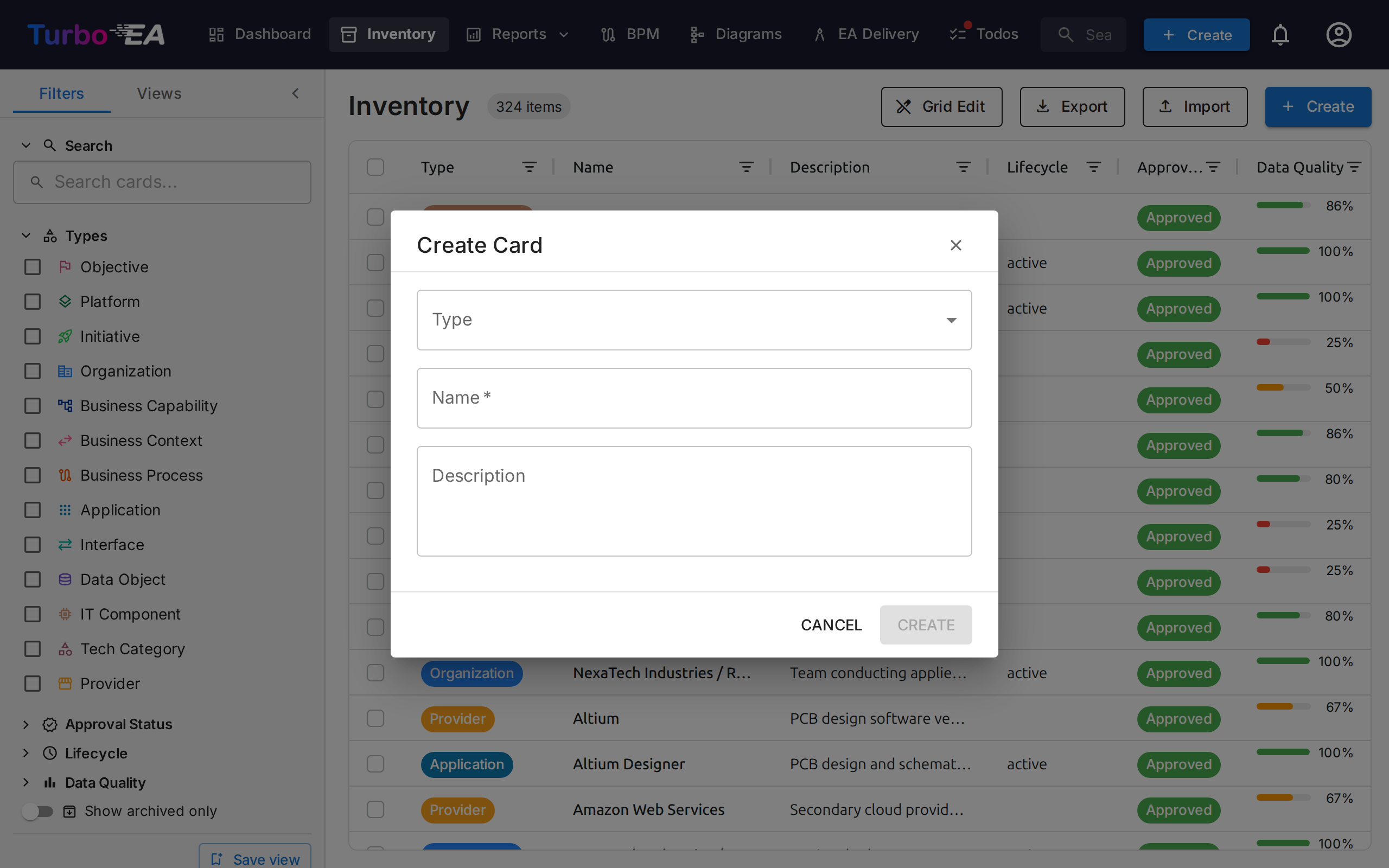
How to Create a New Card
- Click the + Create button (blue, top right corner)
- In the dialog that appears:
- Select the Type of card (Application, Process, Objective, etc.)
- Enter the Name of the component
- Optionally, add a Description
- Optionally, click Suggest with AI to generate a description automatically (see AI Description Suggestions below)
- Click CREATE
Mass Edit
Tick two or more rows using the checkboxes in the left-hand column, then click Mass Edit in the selection toolbar. The dialog applies a single change to every selected card.
The Field dropdown groups what you can change:
- General — approval status, subtype, tags, and parent
- Attributes — any editable field defined for the selected card type
- Relations — one entry per relation type and direction (for example runs on → IT Component)
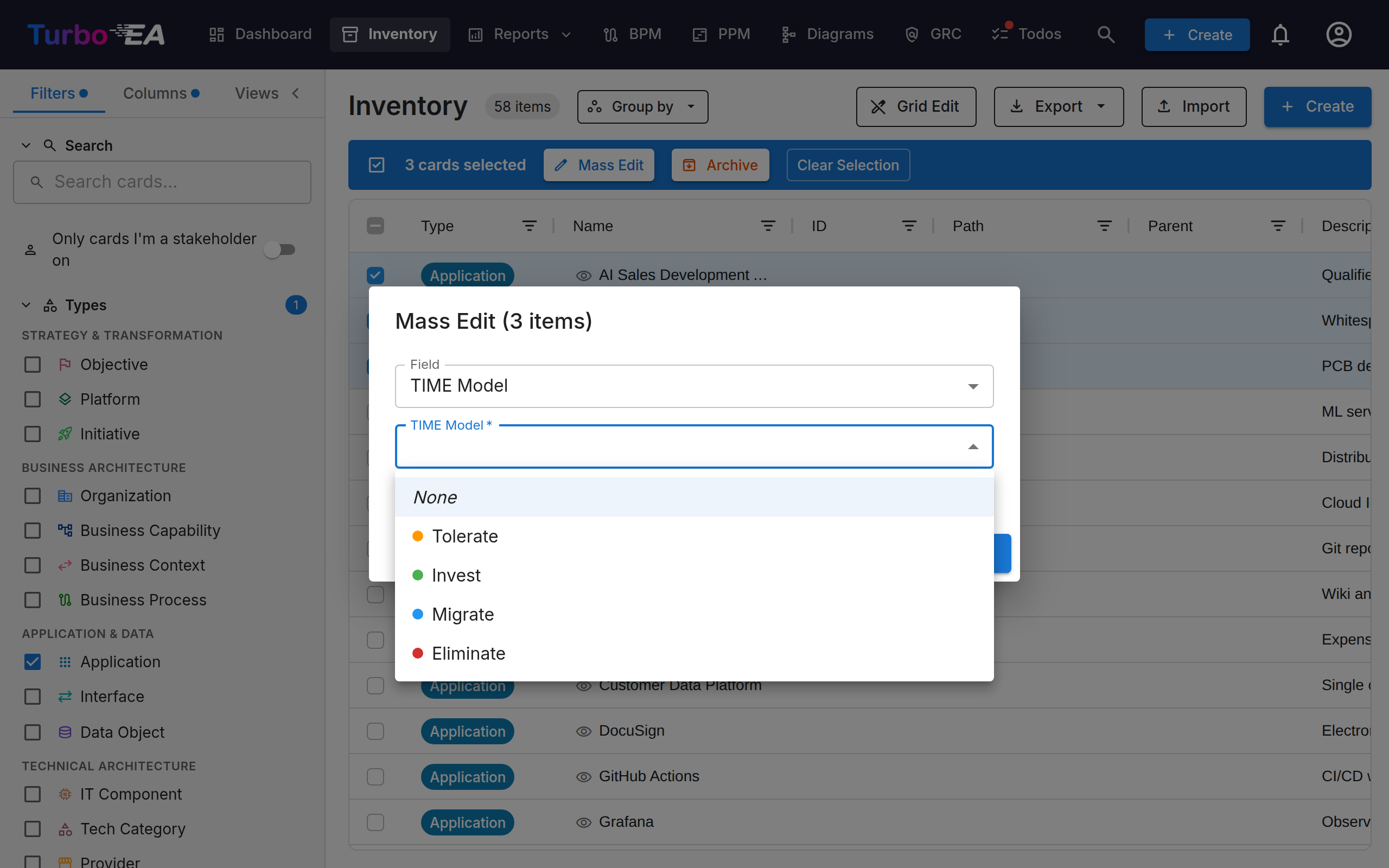
Tags, relations and parent each offer an add / remove toggle, so you extend or trim existing values instead of replacing them.
When you Add link for a relation type that carries details — the flow direction between two applications, how an organization uses an application, the create / read / update / delete flags on a data object — the dialog also shows those fields. What you set is saved on every link added. Cards already linked to a chosen target get the details too, so running Add link again is how you update the details of existing links; a detail you leave empty is not changed.
The value control matches the field's type: a multi-select shows its options with checkboxes, a yes/no field a Yes / No list, a date field a date picker. Leaving the value empty — None on a yes/no field — clears the field on every selected card. Fields calculated by a formula, and cost fields you do not have permission to view, are not offered.
Restructuring the hierarchy
The Parent field appears once you have filtered the grid to a single card type that supports hierarchy. A card has exactly one parent, so this single field covers both directions of a restructuring:
- Set parent — choose a card of the same type; every selected card moves underneath it. This is how you make many cards the children of one parent.
- Clear parent — every selected card moves back to the top level.
Cards are moved one at a time, so a move that is not allowed blocks only that card. The dialog stays open and lists which cards were blocked and why. The usual reasons are:
- A card with the same name already sits under the target parent.
- The chosen parent is a descendant of one of the cards being moved, which would create a loop.
- The move would push a Business Capability beyond the maximum of five levels.
A card takes its own children with it when it moves, and approved cards drop back to Broken so the change is reviewed again.
Grouping the Inventory
Click Group by in the toolbar (next to the item count) to organise the grid into collapsible groups. Lifecycle phase and approval status are always available; filtering the grid to a single card type also unlocks its subtype and every single-select attribute.
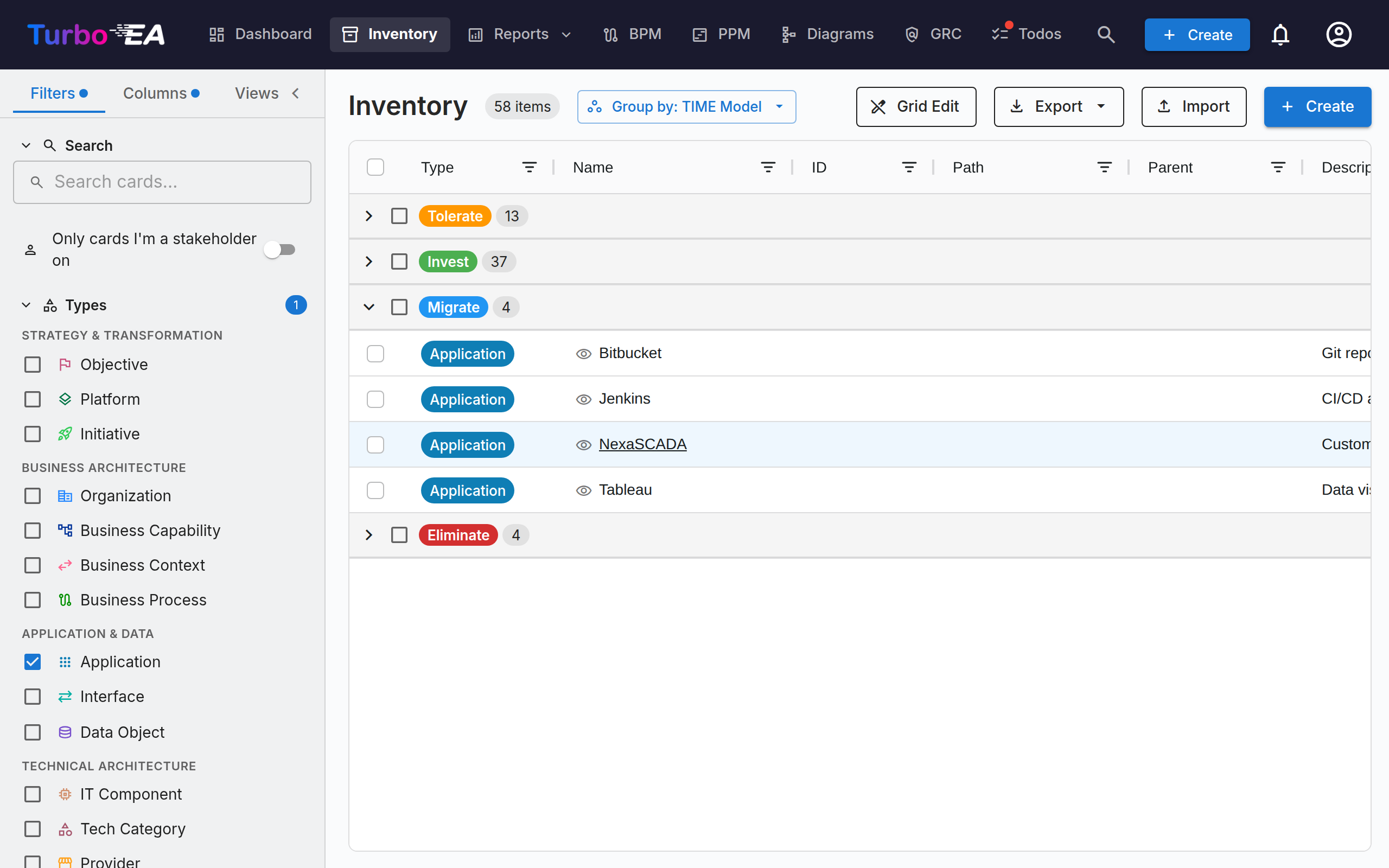
- Cards without a value on the chosen field land in a Not set group at the top — the natural triage bucket for unclassified cards.
- Click a group header to collapse or expand it. The header shows the group's card count.
- Scroll into a long group and its header stays pinned just below the column headers, so you always know which group you are reading; the next group's header slides it aside as it arrives. It is the whole header, tick box included, so you can select a long group without scrolling back to its start.
- The header checkbox selects every card in the group, so reclassifying a batch is: expand Not set, tick the header, then Mass Edit the value. There is deliberately no drag and drop — select and set works the same on desktop, tablet, and phone.
- Sorting applies within each group, and the grouping is remembered across reloads, stored in saved views, and shareable via the
group_byURL parameter.
AI Description Suggestions
Turbo EA can use AI to generate a description for any card. This works on both the Create Card dialog and existing card detail pages.
How it works:
- Enter a card name and select a type
- Click the sparkle icon in the card header, or the Suggest with AI button in the Create Card dialog
- The system performs a web search for the item name (using type-aware context — e.g., "SAP S/4HANA software application"), then sends the results to an LLM to generate a concise, factual description
- A suggestion panel appears with:
- Editable description — review and modify the text before applying
- Confidence score — indicates how certain the AI is (High / Medium / Low)
- Clickable source links — the web pages the description was derived from
- Model name — which LLM generated the suggestion
- Click Apply description to save, or Dismiss to discard
Key characteristics:
- Type-aware: The AI understands the card type context. An "Application" search adds "software application", a "Provider" search adds "technology vendor", etc.
- Privacy-first: When using Ollama, the LLM runs locally — your data never leaves your infrastructure. Commercial providers (OpenAI, Google Gemini, Anthropic Claude, etc.) are also supported
- Admin-controlled: AI suggestions must be enabled by an administrator in Settings > AI Suggestions. Admins choose which card types show the suggestion button, configure the LLM provider, and select the web search provider
- Permission-based: Only users with the
ai.suggestpermission can use this feature (enabled by default for Admin, BPM Admin, and Member roles)
Saved Views (Bookmarks)
You can save your current filter, column, and sort configuration as a named view for quick reuse.
Creating a Saved View
- Configure the inventory with your desired filters, columns, and sorting
- Click the bookmark icon in the filter panel
- Enter a name for the view
- Choose the visibility:
- Private — Only you can see it
- Shared — Visible to specific users (with optional edit permissions)
- Public — Visible to all users
Using Saved Views
Saved views appear in the filter panel sidebar. Click any view to instantly apply its configuration. Views are organized into:
- My Views — Views you created
- Shared with Me — Views others shared with you
- Public Views — Views available to everyone
Excel Import / Export
Inventory exports and imports use a multi-sheet Excel workbook that round-trips your landscape — cards across any number of types plus the relations between them — without ever requiring you to copy a UUID.
Workbook layout
A single export produces:
- One sheet per card type present in the export (Application, Business Capability, IT Component, …). Each sheet carries the type's core columns, its custom
attr_<field_key>columns, its lifecycle columns, itsrel:<relation_type_key>relation columns, and itsstakeholder:<role_key>stakeholder columns. - A
Relationssheet carrying the values relations hold — one row per relation whose type has values to set.
The division is simple, and it has no exceptions: a card sheet says which cards are linked; the Relations sheet says what those links hold. Every relation type gets a rel: column on the card sheet of the type it starts from, whether or not it carries values.
- A _Meta sheet carrying the workbook format version. The importer reads it to detect older formats and prints a banner.
Identifying cards (no GUIDs needed)
Cards are matched by name when unambiguous within their type, otherwise by their full parent_path. A relation cell can list NexaCore ERP directly when only one Application has that name; if two do, the cell needs Sales / Customer Mgmt / CRM (the same path format the parent_path column uses on the card sheets, with \ and / escapes for names that contain those characters).
The same precedence drives card-update matching: rows with a UUID in the id column update that card; rows without an id are matched by (type, parent_path, name); rows that don't match anything become new cards.
Sibling-name uniqueness
Because cards are identified by name + path, two cards of the same type cannot share both a parent and a name. New cards that would create such a collision are rejected at creation time (in the Create Card dialog, in the inline rename, and during spreadsheet import). Cards already in the database that share a name with a sibling — from earlier seed data or imports — are left untouched; you can edit any of their fields, but renaming one back into the collision (or creating a third) is blocked. The check is case- and whitespace-insensitive to match the importer's resolver. When the Create Card dialog rejects a duplicate, the warning names the existing card and includes a View existing card link that takes you straight to it.
Inline relation cells
On every card sheet, rel:<relation_type_key> columns let you express outgoing relations as semicolon-separated target references:
rel:supports     →  NexaCore ERP; BillingApp; Salesforce
rel:depends_on   →  Sales / Customer Mgmt / CRM
Semicolons (not commas) separate targets because card names commonly contain , (e.g. Acme, Inc.). Inside a name, / and \ must be escaped as \/ and \\, and a ; as \; — the importer reads the cell with the same rules as parent_path, so a name like SAP S/4HANA is written as SAP S\/4HANA. The exporter does this for you automatically, and an escaped reference is always exact. A hand-typed cell may leave the / unescaped: SAP S/4HANA is first read as a path (a card 4HANA under SAP S), and when no card sits at that path it is read as one name, which resolves when exactly one card of the type has it.
There is one column per relation type that starts from the sheet's card type — all of them, including types that carry values. Targets are listed alphabetically, so re-exporting an unchanged landscape gives you a byte-identical file and a real edit is the only thing that shows up in a diff.
Cells are declarative: the set of targets in the cell becomes the complete set of outgoing relations of that type from that source after import. Removing a target from the list drops that relation; emptying the cell drops them all. Omitting the column entirely (no rel:supports column at all) leaves existing relations untouched — so deleting columns you don't care about before re-importing is safe.
A comma is never a separator in a workbook exported by Turbo EA (it carries a _Meta sheet), so a cell holding one target such as This is X, it does Y stays one target. A sheet without _Meta (built by hand, or exported before 1.23) may still separate targets with commas: a cell containing any ; is semicolon-separated, and a cell without one is read as a single target when the whole cell names a card, and as comma-separated otherwise.
The tags column follows the same rule: Group: Tag entries separated by ; (for example Vendor: Acme, Inc.; Region: EU), with a ; inside a tag name written as \;. Workbooks exported before 2.156.1 separated tags with commas and still import as before.
Stakeholder cells
On every card sheet, stakeholder:<role_key> columns carry the users assigned to each stakeholder role, as semicolon-separated email addresses (the same convention as LeanIX's subscriptions:<RoleType> export columns):
stakeholder:responsible  →  ada@corp.com; bob@corp.com
stakeholder:observer     →  carol@corp.com
Sheets exported before role keys became camelCase
Stakeholder role keys use the same camelCase convention as every other metamodel key. A sheet exported before that change carries headers such as stakeholder:technical_application_owner; those still import — the header is matched to its camelCase role when no role matches literally. Newly exported sheets use the camelCase form.
The email address is the only accepted user reference — display names can collide, so they are never used for matching. A Name <email> entry is tolerated in hand-authored files (the bracketed email is used); a bare display name produces a warning and is skipped.
Like relation cells, stakeholder cells are declarative per role: the users listed in the cell become the complete assignment set for that role after import. Removing a user from the list unassigns them; emptying the cell clears the role; omitting the column entirely leaves that role's assignments untouched. Entries that don't match any user produce a warning and are skipped — they never block the import.
Relations sheet
A relation can carry values of its own — a Usage Type on an Organization → Application link, an annual cost on an Application → IT Component link, or a free-text description. A rel: cell on a card sheet is a list of card names with nowhere to put them, so those values live on the Relations sheet, one row per relation:
| relation_type | source_type | source_ref | target_type | target_ref | attr_usageType | description |
|---|---|---|---|---|---|---|
| relOrgToApp | Organization | EMEA Sales | Application | Salesforce | user | |
| relOrgToApp | Organization | Sales & Marketing | Application | Salesforce | owner | Primary tenant |
The sheet holds the relations whose type actually has values to set — the others have nothing to fill in and live entirely on the card sheets. Relations pointing at an exported card are included, so an Application export can still edit the Usage Type on the organizations using it; source_ref and target_ref say which way round each row goes. The attr_<field> columns are those of the relation types in this workbook, not every one defined in the instance. Rows are sorted by source card, then relation type, then target.
This sheet only sets values. It never creates or removes a relation — that is the card sheet's job:
- Deleting a row deletes nothing. Trim the sheet down to the rows you care about and import it; the relations you removed from the file are untouched.
- Editing a row's values replaces what that relation holds.
- A row naming two cards that aren't linked has no values to set, so it's reported in the preview and skipped. Link them in the
rel:column on the card sheet — you can do both in the same import, and the relation is created with its values in one go.
Workbooks exported before this change
Older workbooks carry an action column. It is no longer needed and is ignored; a row with action = delete is reported and skipped rather than appearing to work. The import banner tells you when a file predates the current format.
If a card sheet and the Relations sheet contradict each other — a card removed from a rel: cell while its values row is left in place — the removal wins, and the import preview says so.
Importing
Click Import in the toolbar, drop the workbook, and review the preview before applying. The preview shows:
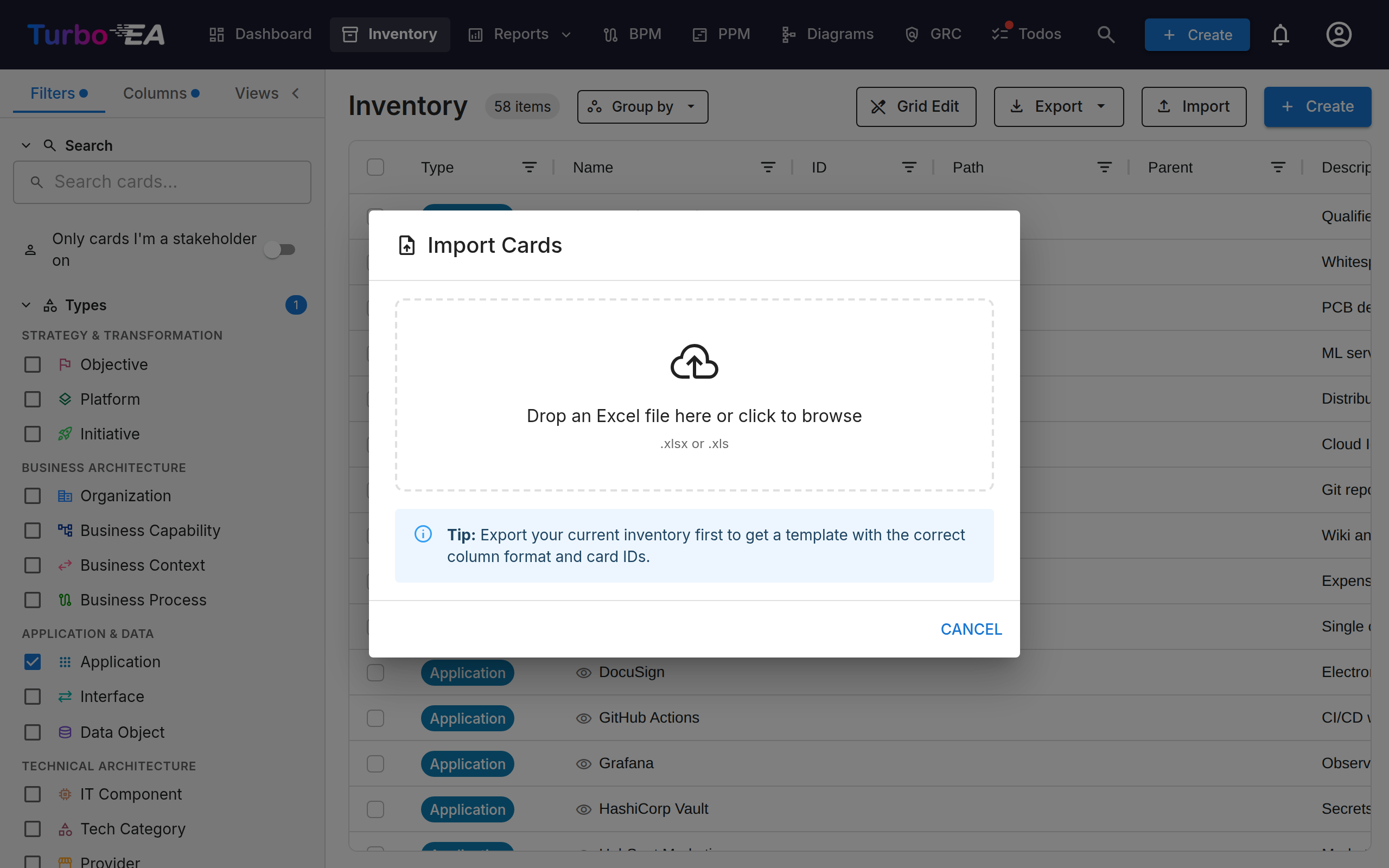
- Cards to create / update — same as before
- Relations to add / remove — every relation operation queued by the workbook
- Errors and warnings — including ambiguous relation targets (with candidate paths so you can disambiguate)
Errors block the apply. Warnings (e.g. unknown tag, format version mismatch) don't.
Exporting
Click Export in the toolbar and choose one of two options:
- Export all fields — the full, re-importable workbook described below. The current grid filter determines the contents:
- Single-type filter active → one card sheet for that type, plus the
Relationssheet, plus_Meta. - No filter or multi-type filter → one sheet per type present, plus the
Relationssheet, plus_Meta. The workbook is fully editable and can be re-imported without losing per-type attributes.
- Single-type filter active → one card sheet for that type, plus the
- Export current view — a flat, single-sheet snapshot that mirrors exactly what's on screen: only the visible columns, in their current left-to-right order, with the displayed column headers, for the filtered rows. Use this to share an organized view with stakeholders. This format carries no card IDs and only the columns you chose, so it is not suitable for re-import — use Export all fields when you intend to edit and re-import. If relation columns are still loading, the export waits for them, so they can never come out blank.
Round-trip tips
- Edit the workbook in Excel, save as
.xlsx, re-import. Cards land via(type, parent_path, name)matching even if you didn't keep theidcolumn. - Renaming a card breaks the name-based match. Keep the
idcolumn populated when you plan to rename and re-import in the same workbook. - New cards that reference each other (parent-child or relation source-target) work in either order — the server topologically sorts before applying.
- Only
nameandtypeare required to create a card. Fields marked required in the metamodel (including on Provider or any other type) don't block the import — the card is still created, and any gaps are reflected in its data-quality score rather than causing a silent skip. - A
/in a card's ownnamecolumn needs no escaping. Escaping (\/for a slash,\\for a backslash) is only needed when you reference that card from aparent_path,rel:<key>,source_ref, ortarget_refcell, where/is the path separator — and even there an unescaped/is read as part of the name when no card sits at the path it spells.