Authentication & SSO
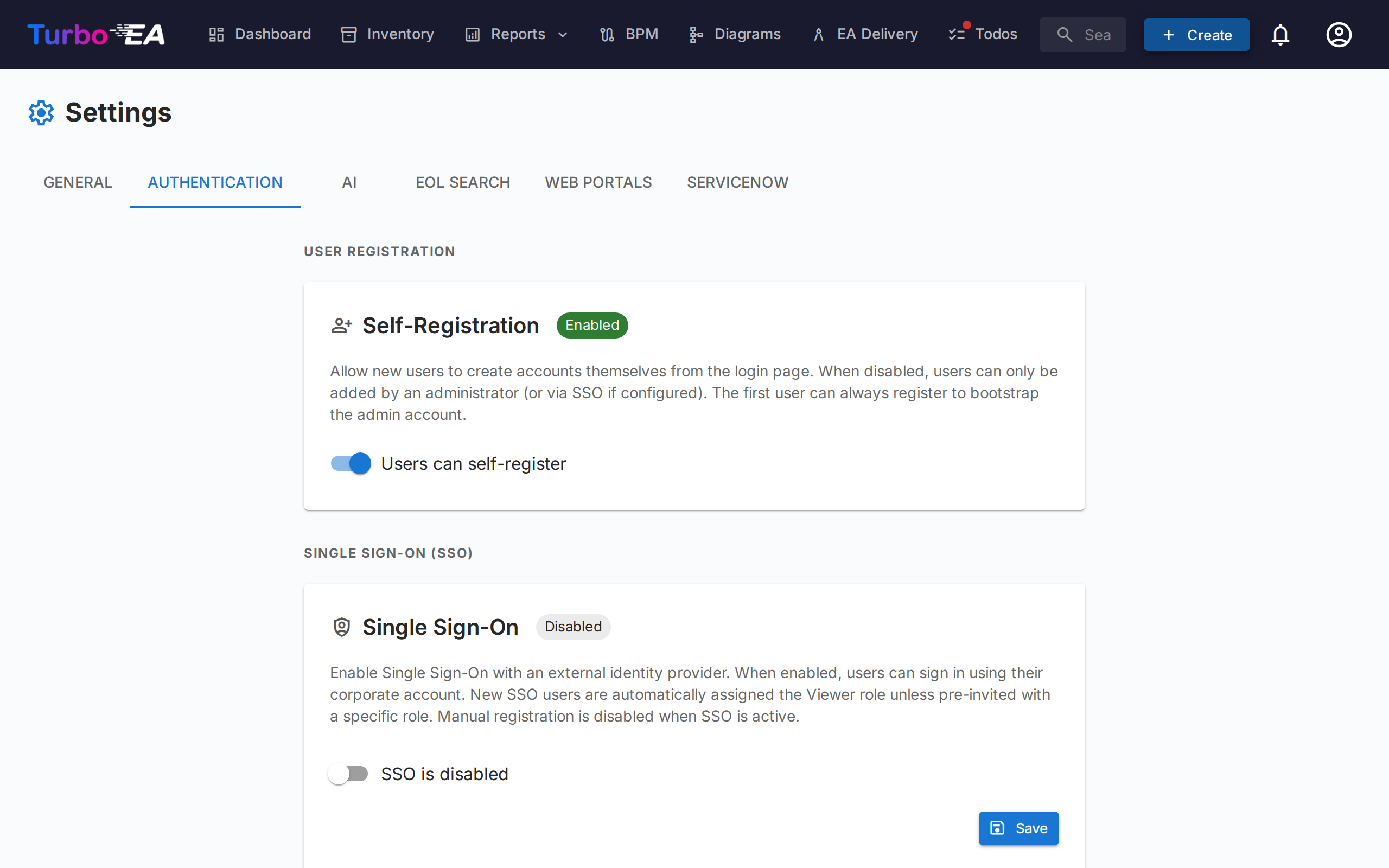
The Authentication tab in Settings allows administrators to configure how users sign in to the platform.
Self-Registration
- Allow self-registration: When enabled, new users can create accounts by clicking "Sign Up" on the login page. When disabled, only administrators can create accounts via the Invite User flow.
SSO (Single Sign-On) Configuration
SSO allows users to sign in using their corporate identity provider instead of a local password. Turbo EA supports four SSO providers:
| Provider | Description |
|---|---|
| Microsoft Entra ID | For organizations using Microsoft 365 / Azure AD |
| Google Workspace | For organizations using Google Workspace |
| Okta | For organizations using Okta as their identity platform |
| Generic OIDC | For any OpenID Connect-compatible provider (e.g., Authentik, Keycloak, Auth0) |
Steps to configure SSO:
- Go to Admin > Settings > Authentication
- Toggle Enable SSO to on
- Select your SSO Provider from the dropdown
- Enter the required credentials from your identity provider:
- Client ID: The application/client ID from your identity provider
- Client Secret: The application secret (stored encrypted in the database)
- Provider-specific fields:
- Microsoft: Tenant ID (e.g.,
your-tenant-idorcommonfor multi-tenant) - Google: Hosted Domain (optional, restricts login to a specific Google Workspace domain)
- Okta: Okta Domain (e.g.,
your-org.okta.com) - Generic OIDC: Issuer URL (e.g.,
https://auth.example.com/application/o/my-app/). For Generic OIDC, the system attempts auto-discovery via the.well-known/openid-configurationendpoint
- Microsoft: Tenant ID (e.g.,
- Click Save
Manual OIDC Endpoints (Advanced):
If the backend cannot reach your identity provider's discovery document (e.g., due to Docker networking or self-signed certificates), you can manually specify the OIDC endpoints:
- Authorization Endpoint: The URL where users are redirected to authenticate
- Token Endpoint: The URL used to exchange the authorization code for tokens
- JWKS URI: The URL for the JSON Web Key Set used to verify token signatures
These fields are optional. If left blank, the system uses auto-discovery. When filled in, they override the auto-discovered values.
Testing SSO:
After saving, open a new browser tab (or incognito window) and verify that the SSO login button appears on the login page and that authentication works end-to-end.
Important notes:
- The Client Secret is stored encrypted in the database and never exposed in API responses
- When SSO is enabled, local password login remains available as a fallback
- You can configure the redirect URI in your identity provider as: https://your-turbo-ea-domain/auth/callback
Reverse proxy authentication
If Turbo EA runs behind a proxy that already signs your users in — Azure App Service's built-in authentication ("EasyAuth"), oauth2-proxy, Authelia, Cloudflare Access — it can accept that identity directly instead of running its own SSO on top. No OIDC client, no app registration, no client secret. Users land in Turbo EA already signed in.
This feature is configured entirely through environment variables and is off by default.
Before anything else, set the bootstrap administrator. Self-registration is closed while proxy authentication is on, so this is how the first administrator gets in — that email is granted the admin role on first sign-in:
TURBO_EA_PROXY_AUTH_BOOTSTRAP_ADMIN_EMAIL=you@yourcompany.com
Azure App Service (EasyAuth) — recommended setup. Turbo EA verifies the signed identity token Azure forwards with each request (this requires the App Service token store, which is on by default). AUDIENCE is your EasyAuth app registration's client ID; replace TENANT with your directory (tenant) ID:
TURBO_EA_PROXY_AUTH_ENABLED=true
TURBO_EA_PROXY_AUTH_TRUST_PLATFORM_HEADERS=true
TURBO_EA_PROXY_AUTH_VERIFY_ID_TOKEN=true
TURBO_EA_PROXY_AUTH_ISSUER=https://login.microsoftonline.com/TENANT/v2.0
TURBO_EA_PROXY_AUTH_AUDIENCE=your-easyauth-app-client-id
TURBO_EA_PROXY_AUTH_JWKS_URI=https://login.microsoftonline.com/TENANT/discovery/v2.0/keys
TURBO_EA_PROXY_AUTH_ALLOWED_DOMAINS=yourcompany.com
TURBO_EA_PROXY_AUTH_LOGOUT_URL=/.auth/logout
TRUST_PLATFORM_HEADERS is required on App Service
App Service cannot inject a custom secret header, so
TURBO_EA_PROXY_AUTH_TRUST_PLATFORM_HEADERS=true is what takes the place of
TURBO_EA_PROXY_AUTH_SHARED_SECRET — it is an explicit acknowledgement that
you rely on Azure stripping inbound identity headers before they reach your
app. It is checked before the identity token is even parsed, so
verifying the token does not substitute for it. Omit both it and a shared
secret and every sign-in fails with Proxy authentication is enabled but not
secured, even with VERIFY_ID_TOKEN=true.
If your token store is disabled, additionally set
TURBO_EA_PROXY_AUTH_VERIFY_ID_TOKEN=false and rely on the header sanitisation
alone. Without a verified token new accounts are not created automatically —
invite users first, or use the bootstrap admin email.
Generic proxy (oauth2-proxy, Authelia, Traefik forwardAuth, …). Configure the proxy to inject a shared secret header on every request, so a request that did not come through the proxy can never be mistaken for one that did. Generate the value with openssl rand -hex 32:
TURBO_EA_PROXY_AUTH_ENABLED=true
TURBO_EA_PROXY_AUTH_MODE=header
TURBO_EA_PROXY_AUTH_SHARED_SECRET=<generated value, also set on the proxy>
TURBO_EA_PROXY_AUTH_EMAIL_HEADER=X-Forwarded-Email
TURBO_EA_PROXY_AUTH_ALLOWED_DOMAINS=yourcompany.com
TURBO_EA_PROXY_AUTH_LOGOUT_URL=/oauth2/sign_out
Security notes:
- The shared secret (or, on Azure, the verified identity token) is what makes the identity trustworthy — a header on its own can be written by anyone. The domain allowlist is required; set
TURBO_EA_PROXY_AUTH_ALLOW_ANY_DOMAIN=trueonly if you genuinely accept any email domain. - An identity that was not cryptographically verified can sign in existing users but never creates a new account, and pending invitations do not confer their role on this path.
TURBO_EA_PROXY_AUTH_LOGOUT_URLis where Turbo EA sends the browser after Sign out so the proxy session ends too. Without it, the proxy still considers the user signed in — they land back on the login page and can re-enter with one click.
Role mapping (optional). By default everyone arrives on the configured default role and an administrator promotes from there. If your identity provider already knows the answer — an Entra app registration that declares its own app roles, an oauth2-proxy that forwards group membership — Turbo EA can read it and assign the role itself:
TURBO_EA_PROXY_AUTH_ROLE_CLAIM=roles
TURBO_EA_PROXY_AUTH_ROLE_MAP=ADMIN:admin,MANAGER:member,READ-ONLY:viewer
Each pair is DIRECTORY_VALUE:turbo-ea-role-key. When a user holds several directory roles, the first entry in the map wins — map order, not the order the provider happened to send them, because the two Azure identity formats disagree on that. Matching ignores case on the directory side. In generic proxy mode the same map reads a comma-separated header instead of a claim: TURBO_EA_PROXY_AUTH_ROLE_HEADER=X-Forwarded-Groups.
The map is authoritative on every sign-in
Not only at account creation. A role granted by hand in Admin → Users is reverted the next time that person signs in — which is the point, since removing someone's directory role has to take effect. Leave TURBO_EA_PROXY_AUTH_ROLE_MAP unset and nothing changes: roles stay entirely manual.
The edge cases, all chosen so a configuration mistake cannot lock you out:
TURBO_EA_PROXY_AUTH_BOOTSTRAP_ADMIN_EMAILalways wins over the map. If the two disagree, that address is admin.- A value that matches nothing in the map — or names a Turbo EA role that does not exist or has been archived — falls back to the default role.
- A claim that is absent entirely leaves the user's current role untouched. This is deliberately different from the case above: a mistyped
ROLE_CLAIM, or a token store that stopped forwarding, would otherwise demote every user on the instance in one pass. - The identity has to be worth trusting with permissions. Role mapping applies when the identity token was verified (
TURBO_EA_PROXY_AUTH_VERIFY_ID_TOKEN=true) or a shared secret is configured. On App Service with the token store disabled and no secret, the map is ignored and a line is written to the log saying so — the same reasoning that stops an unverified header creating an account.
All variables:
| Variable | Default | Purpose |
|---|---|---|
TURBO_EA_PROXY_AUTH_ENABLED |
false |
Master switch |
TURBO_EA_PROXY_AUTH_MODE |
azure_easyauth |
azure_easyauth or header |
TURBO_EA_PROXY_AUTH_SHARED_SECRET |
— | Required in header mode; the proxy injects it |
TURBO_EA_PROXY_AUTH_SECRET_HEADER |
X-Turbo-EA-Proxy-Secret |
Header carrying the shared secret |
TURBO_EA_PROXY_AUTH_VERIFY_ID_TOKEN |
false |
Verify the forwarded identity token (Azure mode) |
TURBO_EA_PROXY_AUTH_ISSUER / _AUDIENCE / _JWKS_URI |
— | Token verification settings |
TURBO_EA_PROXY_AUTH_TRUST_PLATFORM_HEADERS |
false |
Azure only: accept the platform's header sanitisation instead of a secret. Required on App Service |
TURBO_EA_PROXY_AUTH_EMAIL_HEADER |
X-Forwarded-Email |
header mode: email header |
TURBO_EA_PROXY_AUTH_NAME_HEADER |
X-Forwarded-User |
header mode: display-name header |
TURBO_EA_PROXY_AUTH_SUBJECT_HEADER |
X-Forwarded-Subject |
header mode: stable subject id header |
TURBO_EA_PROXY_AUTH_ALLOWED_DOMAINS |
— | Comma-separated allowed email domains (required) |
TURBO_EA_PROXY_AUTH_ALLOW_ANY_DOMAIN |
false |
Explicitly accept any email domain |
TURBO_EA_PROXY_AUTH_BOOTSTRAP_ADMIN_EMAIL |
— | Granted admin on first sign-in |
TURBO_EA_PROXY_AUTH_ROLE_MAP |
— | DIRECTORY_VALUE:role-key,… — empty means roles stay manual |
TURBO_EA_PROXY_AUTH_ROLE_CLAIM |
roles |
Claim carrying the directory role (Azure mode) |
TURBO_EA_PROXY_AUTH_ROLE_HEADER |
X-Forwarded-Groups |
header mode: comma-separated role header |
TURBO_EA_PROXY_AUTH_LOGOUT_URL |
— | Where Sign out sends the browser |
Limitations: the MCP server's OAuth flow requires regular SSO to be configured; proxy authentication alone does not cover it.