Saved Reports
Turbo EA lets you save report configurations so you can quickly return to specific views without reconfiguring filters and axes each time.
Saving a Report
From any report page (Portfolio, Capability Map, Lifecycle, Dependencies, Cost, Matrix, Data Quality, or EOL):
- Configure the report with your desired filters, groupings, and axis selections
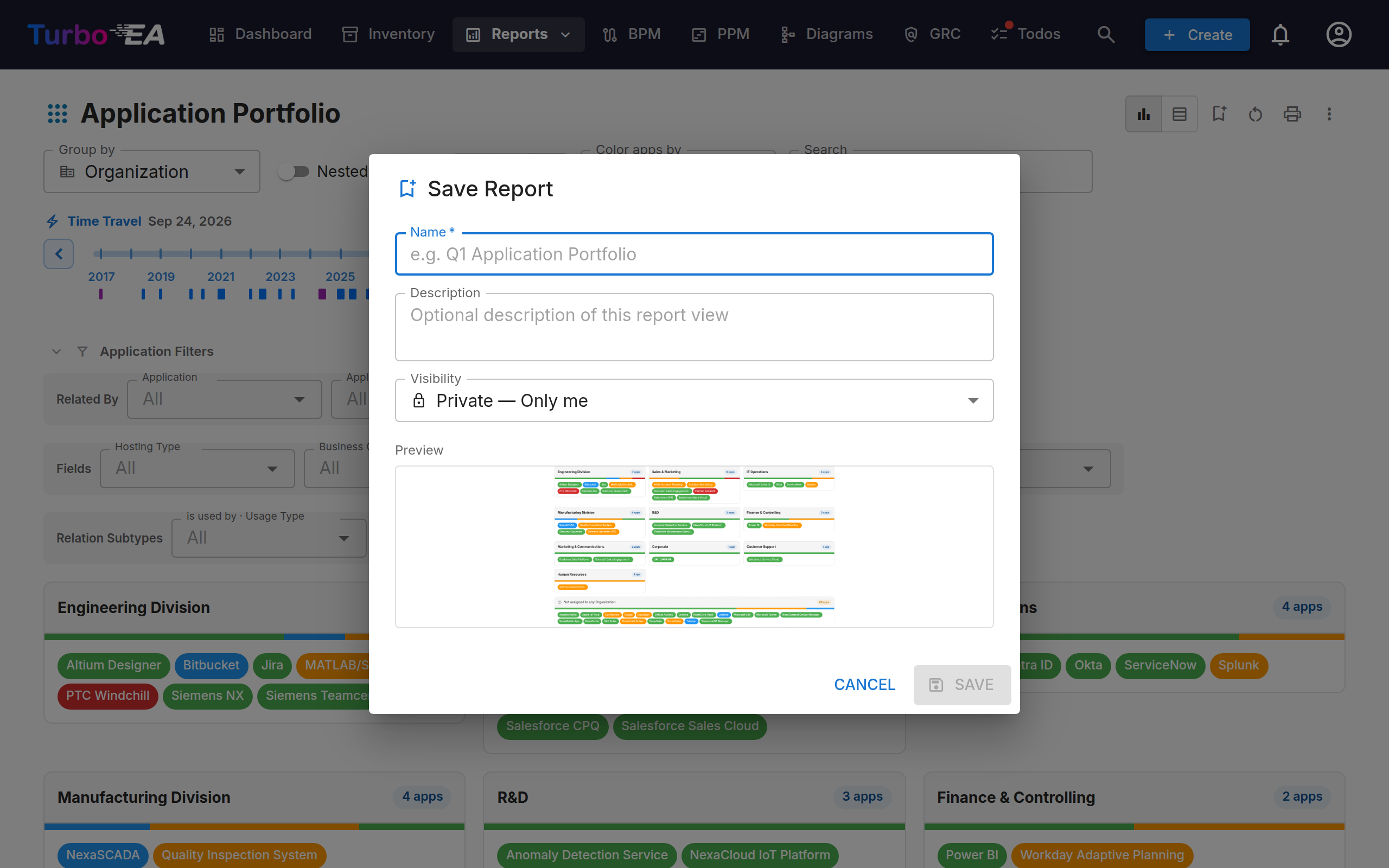
- Click the Save report icon (a bookmark) in the report toolbar
- Enter a name for the saved report
- Choose the visibility:
| Visibility | Who can see it |
|---|---|
| Private | Only you |
| Shared | You and specific users you select |
| Public | All users of the platform |
For shared reports, you can grant edit permissions to specific users, allowing them to update the saved configuration.
- Click Save — a thumbnail is automatically captured from the current visualization
Saved Reports Gallery
Navigate to Reports > Saved Reports to browse all saved reports you have access to. The gallery shows thumbnail previews organized into tabs:
- My Reports — Reports you created
- Shared with Me — Reports others have shared with you
- Public — Reports visible to everyone
Actions
- Open — Click a report to load it with the saved configuration
- Edit — Update the name, visibility, or sharing settings
- Duplicate — Create a copy with a new name
- Delete — Remove the saved report (only the creator or users with edit permissions can delete)