ServiceNow Integration
The ServiceNow integration (Admin > Settings > Integrations > ServiceNow) enables bi-directional synchronization between Turbo EA and your ServiceNow CMDB. This guide covers everything from initial setup to advanced recipes and operational best practices.
Why Integrate ServiceNow with Turbo EA?
ServiceNow CMDB and Enterprise Architecture tools serve different but complementary purposes:
| ServiceNow CMDB | Turbo EA | |
|---|---|---|
| Focus | IT operations — what's running, who owns it, what incidents occurred | Strategic planning — what should the landscape look like in 3 years? |
| Maintained by | IT Operations, Asset Management | EA Team, Business Architects |
| Strength | Automated discovery, ITSM workflows, operational accuracy | Business context, capability mapping, lifecycle planning, assessments |
| Typical data | Hostnames, IPs, install status, assignment groups, contracts | Business criticality, functional fit, technical debt, strategic roadmap |
Turbo EA is the system of record for your architecture landscape — names, descriptions, lifecycle plans, assessments, and business context all live here. ServiceNow supplements Turbo EA with operational and technical metadata (hostnames, IPs, SLA data, install status) that comes from automated discovery and ITSM workflows. The integration keeps these two systems connected while respecting that Turbo EA leads.
What You Can Do
- Pull sync — Seed Turbo EA with CIs from ServiceNow, then take ownership. Ongoing pulls only update operational fields (IPs, status, SLAs) that SNOW discovers automatically
- Push sync — Export EA-curated data back to ServiceNow (names, descriptions, assessments, lifecycle plans) so ITSM teams see EA context
- Bidirectional sync — Turbo EA leads most fields; SNOW leads a small set of operational/technical fields. Both systems stay in sync
- Identity mapping — Persistent cross-reference tracking (sys_id <-> card UUID) ensures records stay linked across syncs
Integration Architecture
+------------------+         HTTPS / Table API          +------------------+
|   Turbo EA       | <--------------------------------> |  ServiceNow      |
|                  |                                     |                  |
|  Cards           |  Pull: SNOW CIs -> Turbo Cards      |  CMDB CIs        |
|  (Application,   |  Push: Turbo Cards -> SNOW CIs      |  (cmdb_ci_appl,  |
|   ITComponent,   |                                     |   cmdb_ci_server, |
|   Provider, ...) |  Identity Map tracks sys_id <-> UUID |   core_company)  |
+------------------+                                     +------------------+
The integration uses ServiceNow's Table API over HTTPS. Credentials are encrypted at rest using Fernet (AES-128-CBC) derived from your SECRET_KEY. All sync operations are logged as events with source: "servicenow_sync" for a complete audit trail.
Planning Your Integration
Before configuring anything, answer these questions:
1. Which card types need data from ServiceNow?
Start small. The most common integration points are:
| Priority | Turbo EA Type | ServiceNow Source | Why |
|---|---|---|---|
| High | Application | cmdb_ci_business_app |
Applications are the core of EA — CMDB has authoritative names, owners, and status |
| High | ITComponent (Software) | cmdb_ci_spkg |
Software products feed into EOL tracking and tech radar |
| Medium | ITComponent (Hardware) | cmdb_ci_server |
Server landscape for infrastructure mapping |
| Medium | Provider | core_company |
Vendor registry for cost and relationship management |
| Lower | Interface | cmdb_ci_endpoint |
Integration endpoints (often maintained manually in EA) |
| Lower | DataObject | cmdb_ci_database |
Database instances |
2. Which system is the source of truth for each field?
This is the most important decision. The default should be Turbo EA leads — the EA tool is the system of record for your architecture landscape. ServiceNow should only lead for a narrow set of operational and technical fields that come from automated discovery or ITSM workflows. Everything else — names, descriptions, assessments, lifecycle planning, costs — is owned and curated by the EA team in Turbo EA.
Recommended model — "Turbo EA leads, SNOW supplements":
| Field Type | Source of Truth | Why |
|---|---|---|
| Names and descriptions | Turbo leads | EA team curates authoritative names and writes strategic descriptions; CMDB names can be messy or auto-generated |
| Business criticality | Turbo leads | EA team's strategic assessment — not operational data |
| Functional / technical fit | Turbo leads | TIME model scores are an EA concern |
| Lifecycle (all phases) | Turbo leads | Plan, phaseIn, active, phaseOut, endOfLife — all EA planning data |
| Cost data | Turbo leads | EA tracks total cost of ownership; CMDB may have contract line items but EA owns the consolidated view |
| Hosting type, category | Turbo leads | EA classifies applications by hosting model for strategic analysis |
| Technical metadata | SNOW leads | IPs, OS versions, hostnames, serial numbers — automated discovery data that EA doesn't maintain |
| SLA / operational status | SNOW leads | Install status, SLA targets, availability metrics — ITSM operational data |
| Assignment group / support | SNOW leads | Operational ownership tracked in ServiceNow workflows |
| Discovery dates | SNOW leads | First/last discovered, last scan — CMDB automation metadata |
3. How often should you sync?
| Scenario | Frequency | Notes |
|---|---|---|
| Initial import | Once | Additive mode, review carefully |
| Active landscape management | Daily | Automated via cron during off-hours |
| Compliance reporting | Weekly | Before generating reports |
| Ad-hoc | As needed | Before major EA reviews or presentations |
Step 1: ServiceNow Prerequisites
Create a Service Account
In ServiceNow, create a dedicated service account (never use personal accounts):
| Role | Purpose | Required? |
|---|---|---|
itil |
Read access to CMDB tables | Yes |
cmdb_read |
Read Configuration Items | Yes |
rest_api_explorer |
Helpful for testing queries | Recommended |
import_admin |
Write access to target tables | Only for push sync |
Best practice: Create a custom role with read-only access to only the specific tables you plan to sync. The itil role is broad — a custom scoped role limits blast radius.
Network Requirements
- Turbo EA backend must reach your SNOW instance over HTTPS (port 443)
- Configure firewall rules and IP allowlists
- Instance URL format:
https://company.service-now.comorhttps://company.servicenowservices.com
Choose Authentication Method
| Method | Pros | Cons | Recommendation |
|---|---|---|---|
| Basic Auth | Simple setup | Credentials sent every request | Development/testing only |
| OAuth 2.0 | Token-based, scoped, audit-friendly | More setup steps | Recommended for production |
For OAuth 2.0: 1. In ServiceNow: System OAuth > Application Registry 2. Create a new OAuth API endpoint for external clients 3. Note the Client ID and Client Secret 4. Rotate secrets on a 90-day cycle
Step 2: Create a Connection
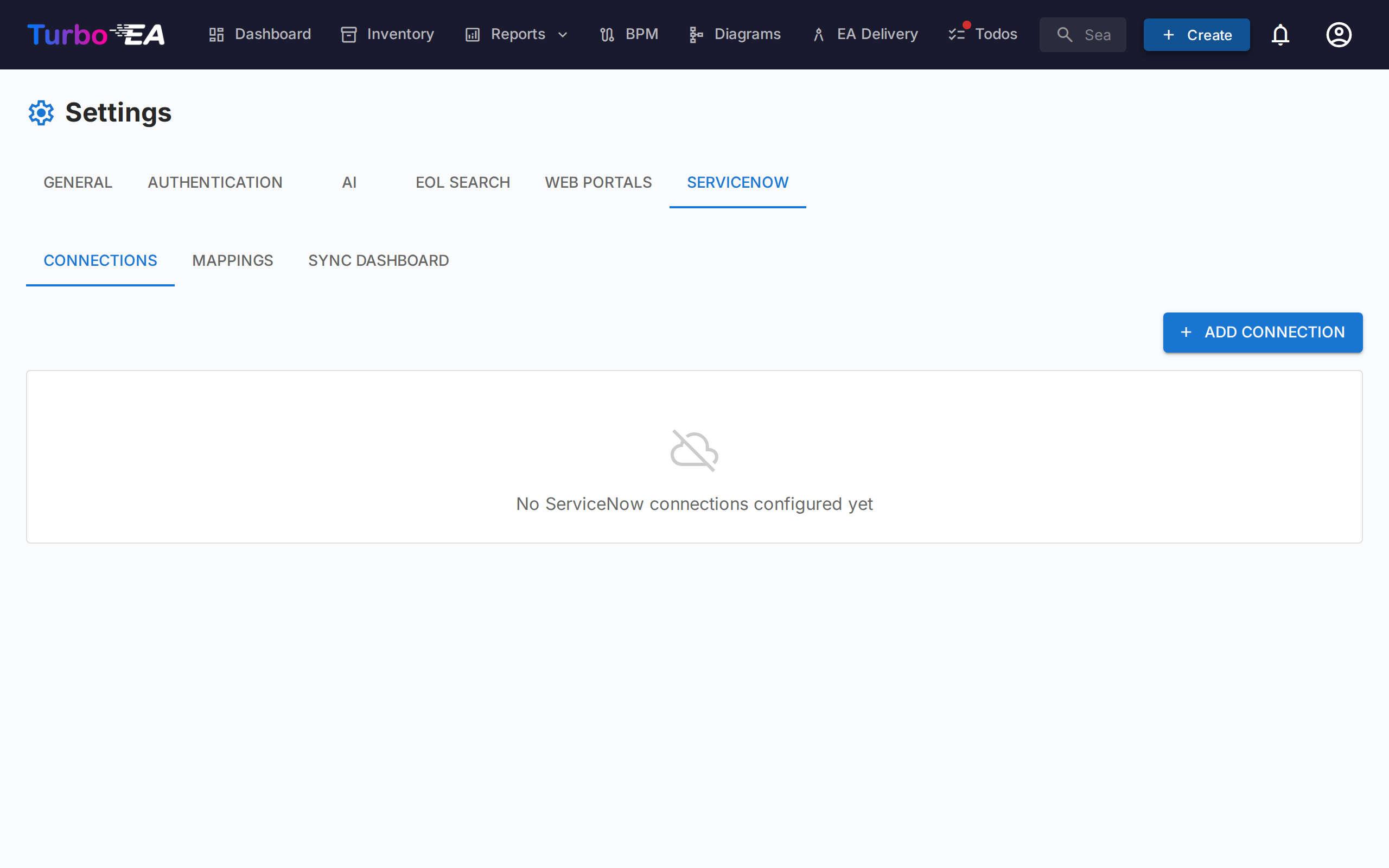
Navigate to Admin > ServiceNow > Connections tab.
Create and Test
- Click Add Connection
- Fill in:
| Field | Example Value | Notes |
|---|---|---|
| Name | Production CMDB |
Descriptive label for your team |
| Instance URL | https://company.service-now.com |
Must use HTTPS |
| Auth Type | Basic Auth or OAuth 2.0 | OAuth recommended for production |
| Credentials | (per auth type) | Encrypted at rest via Fernet |
-
Click Create, then click the test icon (wifi symbol) to verify connectivity
-
Green "Connected" chip — Ready to go
- Red "Failed" chip — Check credentials, network, and URL
Multiple Connections
You can create multiple connections for: - Production vs development instances - Regional SNOW instances (e.g., EMEA, APAC) - Different teams with separate service accounts
Each mapping references a specific connection.
Step 3: Design Your Mappings
Switch to the Mappings tab. A mapping connects one Turbo EA card type to one ServiceNow table.
Create a Mapping
Click Add Mapping and configure:
| Field | Description | Example |
|---|---|---|
| Connection | Which ServiceNow instance to use | Production CMDB |
| Card Type | The Turbo EA card type to sync | Application |
| SNOW Table | The ServiceNow table API name | cmdb_ci_business_app |
| Sync Direction | Which operations are available (see below) | ServiceNow -> Turbo EA |
| Sync Mode | How to handle deletions | Conservative |
| Max Deletion Ratio | Safety threshold for bulk deletes | 50% |
| Filter Query | ServiceNow encoded query to limit scope | active=true^install_status=1 |
| Skip Staging | Apply changes directly without review | Off (recommended for initial sync) |
Common SNOW Table Mappings
| Turbo EA Type | ServiceNow Table | Description |
|---|---|---|
| Application | cmdb_ci_business_app |
Business applications (most common) |
| Application | cmdb_ci_appl |
General application CIs |
| ITComponent (Software) | cmdb_ci_spkg |
Software packages |
| ITComponent (Hardware) | cmdb_ci_server |
Physical/virtual servers |
| ITComponent (SaaS) | cmdb_ci_cloud_service_account |
Cloud service accounts |
| Provider | core_company |
Vendors / companies |
| Interface | cmdb_ci_endpoint |
Integration endpoints |
| DataObject | cmdb_ci_database |
Database instances |
| System | cmdb_ci_computer |
Computer CIs |
| Organization | cmn_department |
Departments |
Filter Query Examples
Always filter to avoid importing stale or retired records:
# Only active CIs (minimum recommended filter)
active=true

# Active CIs with install status "Installed"
active=true^install_status=1

# Applications in production use
active=true^used_for=Production

# CIs updated in the last 30 days
active=true^sys_updated_on>=javascript:gs.daysAgoStart(30)

# Specific assignment group
active=true^assignment_group.name=IT Operations

# Exclude retired CIs
active=true^install_statusNOT IN7,8
Best practice: Always include active=true at minimum. CMDB tables often contain thousands of retired or decommissioned records that should not be imported into your EA landscape.
Step 4: Configure Field Mappings
Each mapping contains field mappings that define how individual fields translate between the two systems. The Turbo EA Field input provides autocomplete suggestions based on the selected card type — including core fields, lifecycle dates, and all custom attributes from the type's schema.
Adding Fields
For each field mapping, you configure:
| Setting | Description |
|---|---|
| Turbo EA Field | Field path in Turbo EA (autocomplete suggests options based on card type) |
| SNOW Field | ServiceNow column API name (e.g., name, short_description). Leave blank to write a hardcoded constant (see below) |
| Default value | Value written when the ServiceNow field is empty or missing (see below) |
| Direction | Per-field source of truth: SNOW leads or Turbo leads |
| Transform | How to convert values: Direct, Value Map, Date, Boolean |
| Identity (ID checkbox) | Used for matching records during initial sync |
Turbo EA Field Paths
The autocomplete groups fields by section. Here's the full path reference:
| Path | Target | Example Value |
|---|---|---|
name |
Card display name | "SAP S/4HANA" |
description |
Card description | "Core ERP system for financials" |
subtype |
Card subtype (from the card type's subtype list) | "hardware" |
lifecycle.plan |
Lifecycle: Plan date | "2024-01-15" |
lifecycle.phaseIn |
Lifecycle: Phase In date | "2024-03-01" |
lifecycle.active |
Lifecycle: Active date | "2024-06-01" |
lifecycle.phaseOut |
Lifecycle: Phase Out date | "2028-12-31" |
lifecycle.endOfLife |
Lifecycle: End of Life date | "2029-06-30" |
attributes.<key> |
Any custom attribute from the card type's fields schema | Varies by field type |
For example, if your Application type has a field with key businessCriticality, select attributes.businessCriticality from the dropdown.
Default and Constant Values
The Default value on a field mapping lets you fill in data that ServiceNow doesn't provide. It applies inbound only (during a pull), and behaves two ways depending on whether a SNOW Field is set:
- Fallback — With both a SNOW Field and a default, the default is used only when the ServiceNow value is empty or missing. A real ServiceNow value always wins.
- Constant — Leave the SNOW Field blank and set only a default to write a hardcoded value on every synced card, regardless of ServiceNow. For example, map
subtypewith no SNOW Field and a default ofhardwareso every pulled CI lands as a hardware IT Component.
The default is coerced to the target field's type: boolean, number, and cost fields parse the value; multi-select fields accept a comma-separated list (e.g. web, backend becomes two values). To combine several ServiceNow fields into one Turbo EA field, use a calculated field that aggregates intermediate mapped fields — the mapping layer maps one column at a time.
Identity Fields — How Matching Works
Mark one or more fields as Identity (key icon). These are used during the first sync to match ServiceNow records to existing Turbo EA cards:
- Identity map lookup — If a sys_id <-> card UUID link already exists, use it
- Exact name match — Match on the identity field value (e.g., matching by application name)
- Fuzzy match — If no exact match, use SequenceMatcher with 85% similarity threshold
Best practice: Always mark the name field as an identity field. If names differ between systems (e.g., SNOW includes version numbers like "SAP S/4HANA v2.1" but Turbo EA has "SAP S/4HANA"), clean them up before the first sync for better match quality.
After the first sync establishes identity map links, subsequent syncs use the persistent identity map and don't rely on name matching.
Opening the ServiceNow record
After a card is synced, its Resources tab shows a ServiceNow section with a direct link that opens the matching record (https://<your-instance>/<table>.do?sys_id=<id>) in a new tab. The link is read-only and maintained automatically by sync — nothing to configure. Cards that were never synced don't show the section; you can still add a manual link under Document Links on the same tab.
Step 5: Run Your First Sync
Switch to the Sync Dashboard tab.
Triggering a Sync
For each active mapping, you see Pull and/or Push buttons depending on the configured sync direction:
- Pull (cloud download icon) — Fetches data from SNOW into Turbo EA
- Push (cloud upload icon) — Sends Turbo EA data to ServiceNow
What Happens During a Pull Sync
1. FETCH     Retrieve all matching records from SNOW (batches of 500)
2. MATCH     Match each record to an existing card:
             a) Identity map (persistent sys_id <-> card UUID lookup)
             b) Exact name match on identity fields
             c) Fuzzy name match (85% similarity threshold)
3. TRANSFORM Apply field mappings to convert SNOW -> Turbo EA format
4. DIFF      Compare transformed data against existing card fields
5. STAGE     Assign an action to each record:
             - create: New, no matching card found
             - update: Match found, fields differ
             - skip:   Match found, no differences
             - delete: In identity map but absent from SNOW
6. APPLY     Execute staged actions (create/update/archive cards)
When Skip Staging is enabled, steps 5 and 6 merge — actions are applied directly without writing staged records.
Reviewing Sync Results
The Sync History table shows after each run:
| Column | Description |
|---|---|
| Started | When the sync began |
| Direction | Pull or Push |
| Status | completed, failed, or running |
| Fetched | Total records retrieved from ServiceNow |
| Created | New cards created in Turbo EA |
| Updated | Existing cards updated |
| Deleted | Cards archived (soft-deleted). They follow the normal archive retention window — restorable until it expires, then permanently deleted. |
| Errors | Records that failed to process |
| Duration | Wall-clock time |
Click the list icon on any run to inspect individual staged records, including the field-level diff for each update.
Recommended First Sync Procedure
1. Set mapping to ADDITIVE mode with staging ON
2. Run pull sync
3. Review staged records — check creates look correct
4. Go to Inventory, verify imported cards
5. Adjust field mappings or filter query if needed
6. Run again until satisfied
7. Switch to CONSERVATIVE mode for ongoing use
8. After several successful runs, enable Skip Staging
Understanding Sync Direction vs Field Direction
This is the most commonly misunderstood concept. There are two levels of direction that work together:
Table-Level: Sync Direction
Set on the mapping itself. Controls which sync operations are available on the Sync Dashboard:
| Sync Direction | Pull button? | Push button? | Use when... |
|---|---|---|---|
| ServiceNow -> Turbo EA | Yes | No | CMDB is the master source, you just import |
| Turbo EA -> ServiceNow | No | Yes | EA tool enriches CMDB with assessments |
| Bidirectional | Yes | Yes | Both systems contribute different fields |
Field-Level: Direction
Set per field mapping. Controls which system's value wins during a sync run:
| Field Direction | During Pull (SNOW -> Turbo) | During Push (Turbo -> SNOW) |
|---|---|---|
| SNOW leads | Value is imported from ServiceNow | Value is skipped (not pushed) |
| Turbo leads | Value is skipped (not overwritten) | Value is exported to ServiceNow |
How They Work Together — Example
Mapping: Application <-> cmdb_ci_business_app, Bidirectional
| Field | Direction | Pull does... | Push does... |
|---|---|---|---|
name |
Turbo leads | Skips (EA curates names) | Pushes EA name -> SNOW |
description |
Turbo leads | Skips (EA writes descriptions) | Pushes description -> SNOW |
lifecycle.active |
Turbo leads | Skips (EA manages lifecycle) | Pushes go-live date -> SNOW |
attributes.businessCriticality |
Turbo leads | Skips (EA assessment) | Pushes assessment -> SNOW custom field |
attributes.ipAddress |
SNOW leads | Imports IP from discovery | Skips (operational data) |
attributes.installStatus |
SNOW leads | Imports operational status | Skips (ITSM data) |
Key insight: The table-level direction determines what buttons appear. The field-level direction determines which fields actually transfer during each operation. A bidirectional mapping where Turbo EA leads most fields and SNOW only leads operational/technical fields is the most powerful configuration.
Best Practice: Field Direction by Data Type
The default should be Turbo leads for the vast majority of fields. Only set SNOW leads for operational and technical metadata that comes from automated discovery or ITSM workflows.
| Data Category | Recommended Direction | Rationale |
|---|---|---|
| Names, display labels | Turbo leads | EA team curates authoritative, clean names — CMDB names are often auto-generated or inconsistent |
| Description | Turbo leads | EA descriptions capture strategic context, business value, and architectural significance |
| Business criticality (TIME model) | Turbo leads | Core EA assessment — not operational data |
| Functional/technical suitability | Turbo leads | EA-specific scoring and roadmap classification |
| Lifecycle (all phases) | Turbo leads | Plan, phaseIn, active, phaseOut, endOfLife are all EA planning decisions |
| Cost data | Turbo leads | EA tracks total cost of ownership and budget allocation |
| Hosting type, classification | Turbo leads | Strategic categorization maintained by architects |
| Vendor/provider info | Turbo leads | EA manages vendor strategy, contracts, and risk — SNOW may have a vendor name but EA owns the relationship |
| Technical metadata (OS, IP, hostname) | SNOW leads | Automated discovery data — EA doesn't maintain this |
| SLA targets, availability metrics | SNOW leads | Operational data from ITSM workflows |
| Install status, operational state | SNOW leads | CMDB tracks whether a CI is installed, retired, etc. |
| Assignment group, support team | SNOW leads | Operational ownership managed in ServiceNow |
| Discovery metadata (first/last seen) | SNOW leads | CMDB automation timestamps |
Skip Staging — When to Use It
By default, pull syncs follow a stage-then-apply workflow:
Fetch -> Match -> Transform -> Diff -> STAGE -> Review -> APPLY
Records are written to a staging table, allowing you to review what will change before applying. This is visible in the Sync Dashboard under "View staged records."
Skip Staging Mode
When you enable Skip Staging on a mapping, records are applied directly:
Fetch -> Match -> Transform -> Diff -> APPLY DIRECTLY
No staged records are created — changes happen immediately.
| Staging (default) | Skip Staging | |
|---|---|---|
| Review step | Yes — inspect diffs before applying | No — changes apply immediately |
| Staged records table | Populated with create/update/delete entries | Not populated |
| Audit trail | Staged records + event history | Event history only |
| Performance | Slightly slower (writes staging rows) | Slightly faster |
| Undo | Can abort before applying | Must manually revert |
When to Use Each
| Scenario | Recommendation |
|---|---|
| First-time import | Use staging — Review what gets created before applying |
| New or changed mapping | Use staging — Verify field transforms produce correct output |
| Stable, well-tested mapping | Skip staging — No need to review every run |
| Automated daily syncs (cron) | Skip staging — Unattended runs can't wait for review |
| Large CMDB (10,000+ CIs) | Skip staging — Avoids creating thousands of staging rows |
| Compliance-sensitive environment | Use staging — Maintain full audit trail in staging table |
Best practice: Start with staging enabled for your first several syncs. Once you're confident the mapping produces correct results, enable skip staging for automated runs.
Sync Modes and Deletion Safety
Sync Modes
| Mode | Creates | Updates | Deletes | Best For |
|---|---|---|---|---|
| Additive | Yes | Yes | Never | Initial imports, low-risk environments |
| Conservative | Yes | Yes | Only cards created by sync | Default for ongoing syncs |
| Strict | Yes | Yes | All linked cards | Full mirror of CMDB |
Additive never removes cards from Turbo EA, making it the safest option for first-time imports and environments where Turbo EA contains cards not present in ServiceNow (manually created cards, cards from other sources).
Conservative (default) tracks whether each card was originally created by the sync engine. Only those cards can be auto-archived if they disappear from ServiceNow. Cards created manually in Turbo EA or imported from other sources are never touched.
Strict archives any linked card whose corresponding ServiceNow CI no longer appears in the query results, regardless of who created it. Use this only when ServiceNow is the absolute source of truth and you want Turbo EA to mirror it exactly.
Max Deletion Ratio — Safety Net
As a safety net, the engine skips all deletions if the count exceeds the configured ratio:
deletions / total_linked > max_deletion_ratio -> SKIP ALL DELETIONS
Example with 10 linked records and 50% threshold:
| Scenario | Deletions | Ratio | Result |
|---|---|---|---|
| 3 CIs removed normally | 3 / 10 = 30% | Under threshold | Deletions proceed |
| 6 CIs removed at once | 6 / 10 = 60% | Over threshold | All deletions skipped |
| SNOW returns empty (outage) | 10 / 10 = 100% | Over threshold | All deletions skipped |
This prevents catastrophic data loss from filter query changes, temporary ServiceNow outages, or misconfigured table names.
Best practice: Keep the deletion ratio at 50% or lower for tables with fewer than 100 records. For large tables (1,000+), you can safely set it to 25%.
Recommended Progression
Week 1:   ADDITIVE mode, staging ON, run manually, review every record
Week 2-4: CONSERVATIVE mode, staging ON, run daily, spot-check results
Month 2+: CONSERVATIVE mode, staging OFF (skip), automated daily cron
Recommended Recipes by Type
Recipe 1: Applications from CMDB (Most Common)
Goal: Import the application landscape from ServiceNow, then take ownership of names, descriptions, assessments, and lifecycle in Turbo EA. SNOW only leads operational fields.
Mapping:
| Setting | Value |
|---|---|
| Card Type | Application |
| SNOW Table | cmdb_ci_business_app |
| Direction | Bidirectional |
| Mode | Conservative |
| Filter | active=true^install_status=1 |
Field mappings:
| Turbo EA Field | SNOW Field | Direction | Transform | ID? |
|---|---|---|---|---|
name |
name |
Turbo leads | Direct | Yes |
description |
short_description |
Turbo leads | Direct | |
lifecycle.active |
go_live_date |
Turbo leads | Date | |
lifecycle.endOfLife |
retirement_date |
Turbo leads | Date | |
attributes.businessCriticality |
busines_criticality |
Turbo leads | Value Map | |
attributes.hostingType |
hosting_type |
Turbo leads | Direct | |
attributes.installStatus |
install_status |
SNOW leads | Direct | |
attributes.ipAddress |
ip_address |
SNOW leads | Direct |
Value map config for businessCriticality:
{
  "mapping": {
    "1 - most critical": "missionCritical",
    "2 - somewhat critical": "businessCritical",
    "3 - less critical": "businessOperational",
    "4 - not critical": "administrativeService"
  }
}
First sync tip: On the very first pull, SNOW values populate all fields (since cards don't exist yet). After that, Turbo leads fields are owned by the EA team — subsequent pulls only update the operational SNOW-leads fields (install status, IP), while the EA team manages everything else directly in Turbo EA.
After import: Refine application names, write strategic descriptions, map to Business Capabilities, add functional/technical suitability assessments, and set lifecycle phases — all of this is now owned by Turbo EA and will be pushed back to ServiceNow on push syncs.
Recipe 2: IT Components (Servers)
Goal: Import server infrastructure for infrastructure mapping and dependency analysis. Servers are more operational than applications, so more fields come from SNOW — but Turbo EA still leads names and descriptions.
Mapping:
| Setting | Value |
|---|---|
| Card Type | ITComponent |
| SNOW Table | cmdb_ci_server |
| Direction | Bidirectional |
| Mode | Conservative |
| Filter | active=true^hardware_statusNOT IN6,7 |
Field mappings:
| Turbo EA Field | SNOW Field | Direction | Transform | ID? |
|---|---|---|---|---|
name |
name |
Turbo leads | Direct | Yes |
description |
short_description |
Turbo leads | Direct | |
attributes.manufacturer |
manufacturer.name |
Turbo leads | Direct | |
attributes.operatingSystem |
os |
SNOW leads | Direct | |
attributes.ipAddress |
ip_address |
SNOW leads | Direct | |
attributes.serialNumber |
serial_number |
SNOW leads | Direct | |
attributes.hostname |
host_name |
SNOW leads | Direct |
Note: For servers, operational/discovery fields like OS, IP, serial number, and hostname naturally come from SNOW's automated discovery. But the EA team still owns the display name (which may differ from the hostname) and description for strategic context.
After import: Link IT Components to Applications using relations, which feeds the dependency graph and infrastructure reports.
Recipe 3: Software Products with EOL Tracking
Goal: Import software products and combine with Turbo EA's endoflife.date integration. Turbo EA leads on names, descriptions, and vendor — version is a factual field that SNOW can lead on.
Mapping:
| Setting | Value |
|---|---|
| Card Type | ITComponent |
| SNOW Table | cmdb_ci_spkg |
| Direction | Bidirectional |
| Mode | Conservative |
| Filter | active=true |
Field mappings:
| Turbo EA Field | SNOW Field | Direction | Transform | ID? |
|---|---|---|---|---|
name |
name |
Turbo leads | Direct | Yes |
description |
short_description |
Turbo leads | Direct | |
attributes.version |
version |
SNOW leads | Direct | |
attributes.vendor |
manufacturer.name |
Turbo leads | Direct |
After import: Go to Admin > EOL and use Mass Search to automatically match imported IT Components against endoflife.date products. This gives you automated EOL risk tracking that combines CMDB inventory with public lifecycle data.
Recipe 4: Vendors / Providers (Bidirectional)
Goal: Keep the vendor registry in sync. Turbo EA owns vendor names, descriptions, and strategic context. SNOW supplements with operational contact data.
Mapping:
| Setting | Value |
|---|---|
| Card Type | Provider |
| SNOW Table | core_company |
| Direction | Bidirectional |
| Mode | Additive |
| Filter | vendor=true |
Field mappings:
| Turbo EA Field | SNOW Field | Direction | Transform | ID? |
|---|---|---|---|---|
name |
name |
Turbo leads | Direct | Yes |
description |
notes |
Turbo leads | Direct | |
attributes.website |
website |
Turbo leads | Direct | |
attributes.contactEmail |
email |
SNOW leads | Direct |
Why Turbo leads for most fields: The EA team curates vendor strategy, manages relationships, and tracks risk — this includes the vendor's display name, description, and web presence. SNOW leads only on operational contact data that may be updated by procurement or asset management teams.
Recipe 5: Push EA Assessments Back to ServiceNow
Goal: Export EA-specific assessments to ServiceNow custom fields so ITSM teams can see EA context.
Mapping:
| Setting | Value |
|---|---|
| Card Type | Application |
| SNOW Table | cmdb_ci_business_app |
| Direction | Turbo EA -> ServiceNow |
| Mode | Additive |
Field mappings:
| Turbo EA Field | SNOW Field | Direction | Transform | ID? |
|---|---|---|---|---|
name |
name |
SNOW leads | Direct | Yes |
attributes.businessCriticality |
u_ea_business_criticality |
Turbo leads | Value Map | |
attributes.functionalSuitability |
u_ea_functional_fit |
Turbo leads | Value Map | |
attributes.technicalSuitability |
u_ea_technical_fit |
Turbo leads | Value Map |
Important: Push sync to custom fields (prefixed with
u_) requires those columns to already exist in ServiceNow. Work with your ServiceNow admin to create them before configuring the push mapping. The service account needsimport_adminrole for write access.
Why this matters: ITSM teams see EA assessments directly in ServiceNow incident/change workflows. When a "Mission Critical" application has an incident, priority escalation rules can use the EA-provided criticality score.
Transform Types Reference
Direct (default)
Pass the value through unchanged. Use for text fields that have the same format in both systems.
Value Map
Translates enumerated values between systems. Configure with a JSON mapping:
{
  "mapping": {
    "1": "missionCritical",
    "2": "businessCritical",
    "3": "businessOperational",
    "4": "administrativeService"
  }
}
The mapping reverses automatically when pushing from Turbo EA to ServiceNow. For example, during push, "missionCritical" becomes "1".
Date Format
Truncates ServiceNow datetime values (2024-06-15 14:30:00) to date-only (2024-06-15). Use for lifecycle phase dates where time is irrelevant.
Boolean
Converts between ServiceNow string booleans ("true", "1", "yes") and native booleans. Useful for fields like "is_virtual", "active", etc.
Security Best Practices
Credential Management
| Practice | Details |
|---|---|
| Encryption at rest | All credentials encrypted via Fernet (AES-128-CBC) derived from SECRET_KEY. If you rotate SECRET_KEY, re-enter all ServiceNow credentials. |
| Least privilege | Create a dedicated SNOW service account with read-only access to specific tables. Only grant write access if using push sync. |
| OAuth 2.0 preferred | Basic Auth sends credentials on every API call. OAuth uses short-lived tokens with scope restrictions. |
| Credential rotation | Rotate passwords or client secrets every 90 days. |
Network Security
| Practice | Details |
|---|---|
| HTTPS enforced | HTTP URLs are rejected at validation time. All connections must use HTTPS. |
| Table name validation | Table names validated against ^[a-zA-Z0-9_]+$ to prevent injection. |
| sys_id validation | sys_id values validated as 32-character hex strings. |
| IP allowlisting | Configure ServiceNow IP Access Control to only allow your Turbo EA server's IP. |
Access Control
| Practice | Details |
|---|---|
| RBAC gated | Read-only ServiceNow endpoints require the servicenow.view permission; all changes require servicenow.manage. |
| Audit trail | All sync-created changes publish events with source: "servicenow_sync", visible in card history. |
| No credential exposure | Passwords and secrets are never returned in API responses. |
Production Checklist
- [ ] Dedicated ServiceNow service account (not a personal account)
- [ ] OAuth 2.0 with client credentials grant
- [ ] Credential rotation schedule (every 90 days)
- [ ] Service account restricted to only mapped tables
- [ ] ServiceNow IP allowlist configured for Turbo EA server IP
- [ ] Max deletion ratio set to 50% or lower
- [ ] Sync runs monitored for unusual error or deletion counts
- [ ] Filter queries include
active=trueat minimum
Operational Runbook
Initial Setup Sequence
1. Create ServiceNow service account with minimum required roles
2. Verify network connectivity (can Turbo EA reach SNOW over HTTPS?)
3. Create connection in Turbo EA and test it
4. Verify metamodel types have all fields you want to sync
5. Create first mapping with ADDITIVE mode, staging ON
6. Use the Preview button (via API) to verify mapping produces correct output
7. Run first pull sync — review staged records in the Sync Dashboard
8. Apply staged records
9. Verify imported cards in the Inventory
10. Adjust field mappings if needed, re-run
11. Switch mapping to CONSERVATIVE mode for ongoing use
12. After several successful runs, enable Skip Staging for automation
Ongoing Operations
| Task | Frequency | How |
|---|---|---|
| Run pull sync | Daily or weekly | Sync Dashboard > Pull button (or cron) |
| Review sync stats | After each run | Check error/deletion counts |
| Test connections | Monthly | Click test button on each connection |
| Rotate credentials | Quarterly | Update in both SNOW and Turbo EA |
| Review identity map | Quarterly | Check orphaned entries via sync stats |
| Audit card history | As needed | Filter events by servicenow_sync source |
Setting Up Automated Syncs
Syncs can be triggered via API for automation:
# Daily pull sync at 2:00 AM
0 2 * * * curl -s -X POST \
  -H "Authorization: Bearer $TURBOEA_TOKEN" \
  "https://turboea.company.com/api/v1/servicenow/sync/pull/$MAPPING_ID" \
  >> /var/log/turboea-sync.log 2>&1
Best practice: Run syncs during off-peak hours. For large CMDB tables (10,000+ CIs), expect 2-5 minutes depending on network latency and record count.
Capacity Planning
| CMDB Size | Expected Duration | Recommendation |
|---|---|---|
| < 500 CIs | < 30 seconds | Sync daily, staging optional |
| 500-5,000 CIs | 30s - 2 minutes | Sync daily, skip staging |
| 5,000-20,000 CIs | 2-5 minutes | Sync nightly, skip staging |
| 20,000+ CIs | 5-15 minutes | Sync weekly, use filter queries to split |
Troubleshooting
Connection Issues
| Symptom | Cause | Fix |
|---|---|---|
Connection failed: [SSL] |
Self-signed or expired cert | Ensure SNOW uses a valid public CA certificate |
HTTP 401: Unauthorized |
Wrong credentials | Re-enter username/password; check account is not locked |
HTTP 403: Forbidden |
Insufficient roles | Grant itil and cmdb_read to the service account |
Connection failed: timed out |
Firewall block | Check rules; allowlist Turbo EA's IP in SNOW |
| Test OK but sync fails | Table-level permissions | Grant read access to the specific CMDB table |
Sync Issues
| Symptom | Cause | Fix |
|---|---|---|
| 0 records fetched | Wrong table or filter | Verify table name; simplify filter query |
| All records are "create" | Identity mismatch | Mark name as identity; verify names match between systems |
| High error count | Transform failures | Check staged records for error messages |
| Deletions skipped | Ratio exceeded | Increase threshold or investigate why CIs disappeared |
| Changes not visible | Browser cache | Hard-refresh; check card history for events |
| Duplicate cards | Multiple mappings for same type | Use one mapping per card type per connection |
| Push changes rejected | Missing SNOW permissions | Grant import_admin role to service account |
Diagnostic Tools
# Preview how records will map (5 samples, no side effects)
POST /api/v1/servicenow/mappings/{mapping_id}/preview

# Browse tables on the SNOW instance
GET /api/v1/servicenow/connections/{conn_id}/tables?search=cmdb

# Inspect columns for a table
GET /api/v1/servicenow/connections/{conn_id}/tables/cmdb_ci_business_app/fields

# Filter staged records by action or status
GET /api/v1/servicenow/sync/runs/{run_id}/staged?action=create
GET /api/v1/servicenow/sync/runs/{run_id}/staged?action=update
GET /api/v1/servicenow/sync/runs/{run_id}/staged?status=error
API Reference (Quick)
All endpoints require Authorization: Bearer <token>. Read-only endpoints need the servicenow.view permission; mutating endpoints need servicenow.manage. Base path: /api/v1.
Connections
| Method | Path | Description |
|---|---|---|
| GET | /servicenow/connections |
List connections |
| POST | /servicenow/connections |
Create connection |
| GET | /servicenow/connections/{id} |
Get connection |
| PATCH | /servicenow/connections/{id} |
Update connection |
| DELETE | /servicenow/connections/{id} |
Delete connection + all mappings |
| POST | /servicenow/connections/{id}/test |
Test connectivity |
| GET | /servicenow/connections/{id}/tables |
Browse SNOW tables |
| GET | /servicenow/connections/{id}/tables/{table}/fields |
List table columns |
Mappings
| Method | Path | Description |
|---|---|---|
| GET | /servicenow/mappings |
List mappings with field mappings |
| POST | /servicenow/mappings |
Create mapping with field mappings |
| GET | /servicenow/mappings/{id} |
Get mapping with field mappings |
| PATCH | /servicenow/mappings/{id} |
Update mapping (replaces fields if provided) |
| DELETE | /servicenow/mappings/{id} |
Delete mapping |
| POST | /servicenow/mappings/{id}/preview |
Dry-run preview (5 sample records) |
Sync Operations
| Method | Path | Description |
|---|---|---|
| POST | /servicenow/sync/pull/{mapping_id} |
Pull sync (?auto_apply=true default) |
| POST | /servicenow/sync/push/{mapping_id} |
Push sync |
| GET | /servicenow/sync/runs |
List sync history (?limit=20) |
| GET | /servicenow/sync/runs/{id} |
Get run details + stats |
| GET | /servicenow/sync/runs/{id}/staged |
List staged records for a run |
| POST | /servicenow/sync/runs/{id}/apply |
Apply pending staged records |