End-of-Life (EOL) Management
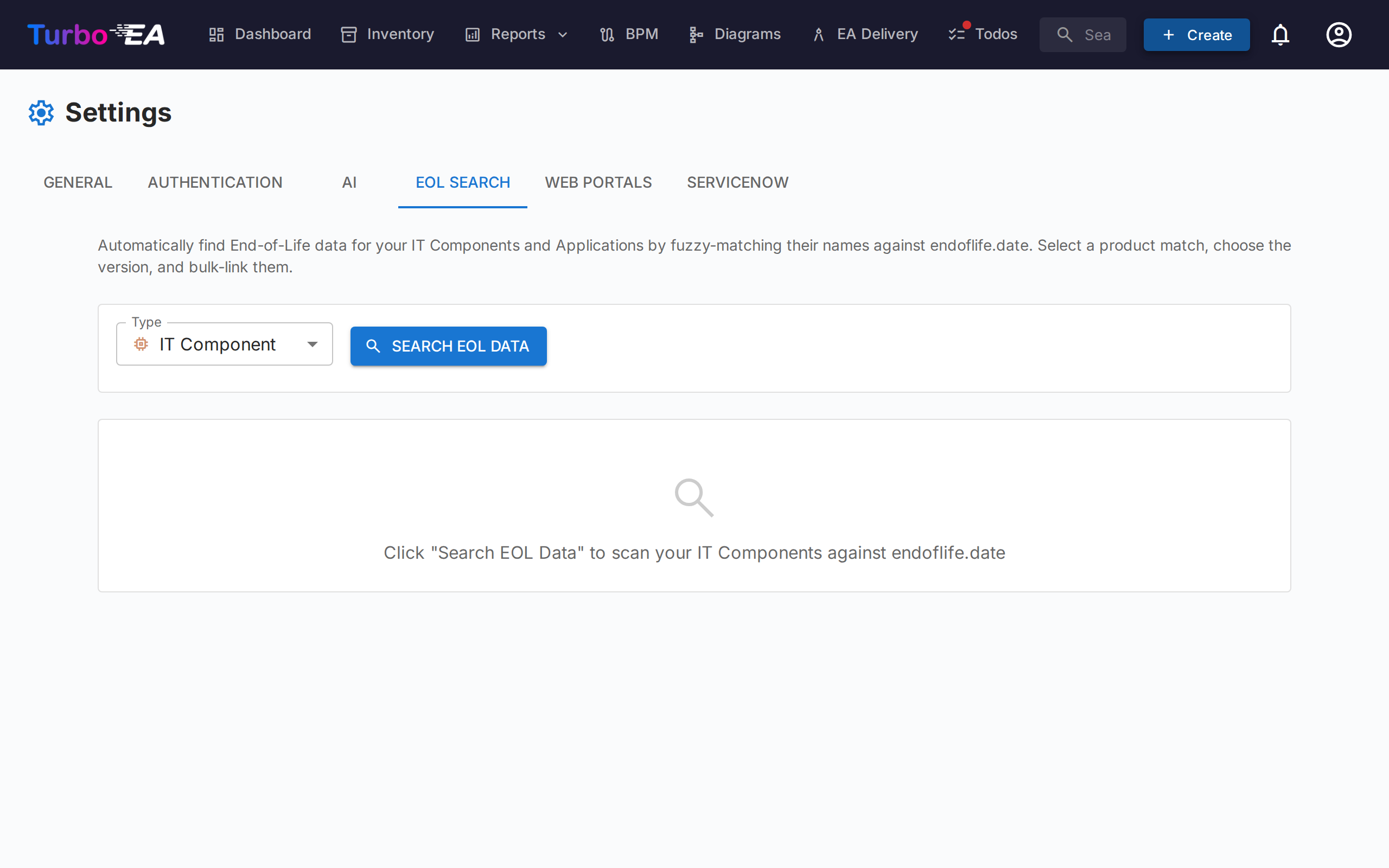
The EOL administration page (Admin > Settings > EOL) helps you track technology product lifecycles by linking your cards to the public endoflife.date database.
Why Track EOL?
Knowing when technology products reach end-of-life or end-of-support is critical for:
- Risk management — Unsupported software is a security liability
- Budget planning — Plan migrations and upgrades before support ends
- Compliance — Many regulations require supported software
Mass Search
The mass search feature scans your Application and IT Component cards and automatically finds matching products in the endoflife.date database.
Running a Mass Search
- Navigate to Admin > Settings > EOL
- Select the card type to scan (Application or IT Component)
- Click Search
- The system performs fuzzy matching against the endoflife.date product catalog
Reviewing Results
For each card, the search returns:
- Match score (0–100%) — How closely the card name matches a known product
- Product name — The matched endoflife.date product
- Available versions/cycles — The product's release versions with their support dates
Filtering Results
Use the filter controls to focus on:
- All items — Every card that was scanned
- Unlinked only — Cards not yet linked to an EOL product
- Already linked — Cards that already have an EOL link
A statistics summary shows: total cards scanned, already linked, unlinked, and matches found.
Linking Cards to Products
- Review the suggested match for each card
- Select the correct product version/cycle from the dropdown
- Click Link to save the association
Once linked, the card's detail page shows an EOL section with:
- Product name and version
- Support status — Color-coded: Supported (green), Approaching EOL (orange), End of Life (red)
- Key dates — Release date, active support end, security support end, EOL date
EOL Report
Linked EOL data feeds into the EOL Report, which provides a dashboard view of your technology landscape's support status across all linked cards.
Finding what is not linked yet
Two places outside this page list the cards with no end-of-life information at all — neither a link here nor an End of Life date of their own:
- The End of life filter and column in the Inventory — pick a card type, then the (empty) pill.
- The No EOL data figure on the EOL Report, and the End-of-life coverage chart at the foot of the Data Quality report.