TurboLens AI Intelligence
The TurboLens module provides AI-powered analysis of your enterprise architecture landscape. It uses your configured AI provider to perform vendor analysis, duplicate detection, modernization assessment, and architecture recommendations.
Note
TurboLens requires a commercial AI provider (Anthropic Claude, OpenAI, DeepSeek, Google Gemini, or Amazon Bedrock) configured in AI Settings. The module is automatically available when AI is configured.
Dashboard
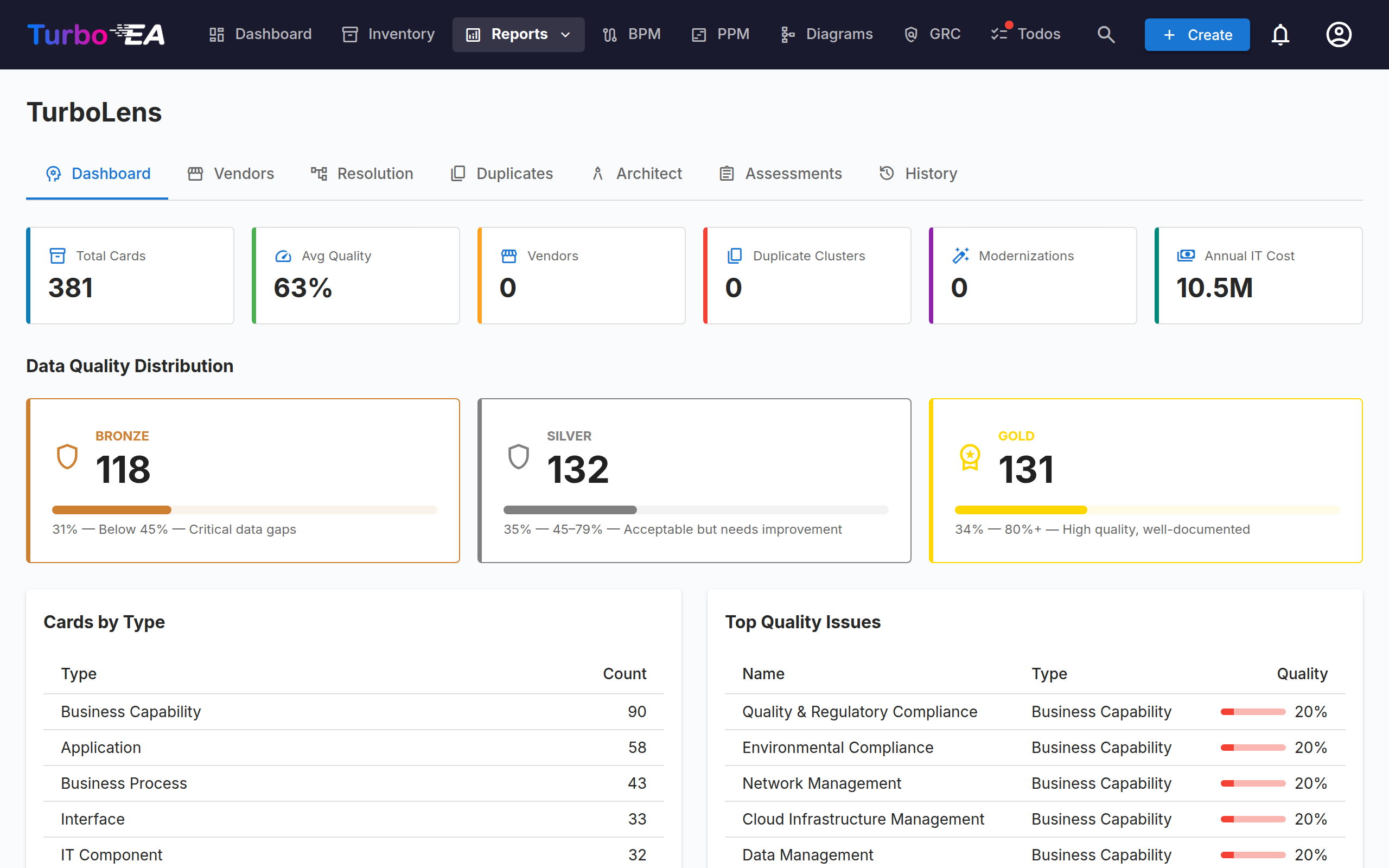
The TurboLens dashboard provides an at-a-glance overview of your landscape analysis.
| Indicator | Description |
|---|---|
| Total Cards | Number of active cards in your portfolio |
| Avg Quality | Average data quality score across all cards |
| Vendors | Number of analyzed technology vendors |
| Duplicate Clusters | Number of identified duplicate groups |
| Modernizations | Number of modernization opportunities found |
| Annual Cost | Total annual cost across all cards |
The dashboard also shows:
- Cards by type — Breakdown of card counts per card type
- Data quality distribution — Cards grouped into Bronze (<50%), Silver (50–80%), and Gold (>80%) quality tiers
- Top quality issues — Cards with the lowest data quality scores, with direct links to each card
Vendor Analysis
Vendor analysis uses AI to categorize your technology vendors into 45+ industry categories (e.g., CRM, ERP, Cloud Infrastructure, Security).
How to use:
- Navigate to TurboLens > Vendors
- Click Run Analysis
- The AI processes your vendor portfolio in batches, categorizing each vendor with reasoning
- Results show a category breakdown and a detailed vendor table
Each vendor entry includes the category, sub-category, number of associated applications, total annual cost, and the AI's reasoning for the categorization. Toggle between grid and table views using the view switcher.
Vendor Resolution
Vendor resolution builds a canonical vendor hierarchy by resolving aliases and identifying parent-child relationships.
How to use:
- Navigate to TurboLens > Resolution
- Click Resolve Vendors
- The AI identifies vendor aliases (e.g., "MSFT" = "Microsoft"), parent companies, and product groupings
- Results show the resolved hierarchy with confidence scores
The hierarchy organizes vendors into four levels: vendor, product, platform, and module. Each entry shows the number of linked applications and IT components, total cost, and a confidence percentage.
Duplicate Detection
Duplicate detection identifies functional overlaps in your portfolio — cards that serve the same or similar business purpose.
How to use:
- Navigate to TurboLens > Duplicates
- Click Detect Duplicates
- The AI analyzes Application, IT Component, and Interface cards in batches
- Results show clusters of potential duplicates with evidence and recommendations
For each cluster, you can:
- Confirm — Mark the duplicate as confirmed for follow-up
- Investigate — Flag for further investigation
- Dismiss — Dismiss if not a real duplicate
Modernization Assessment
Modernization assessment evaluates cards for upgrade opportunities based on current technology trends.
How to use:
- Navigate to TurboLens > Duplicates (Modernization tab)
- Select a target card type (Application, IT Component, or Interface)
- Click Assess Modernization
- Results show each card with modernization type, recommendation, effort level (low/medium/high), and priority (low/medium/high/critical)
Results are grouped by priority so you can focus on the most impactful modernization opportunities first.
Architecture AI
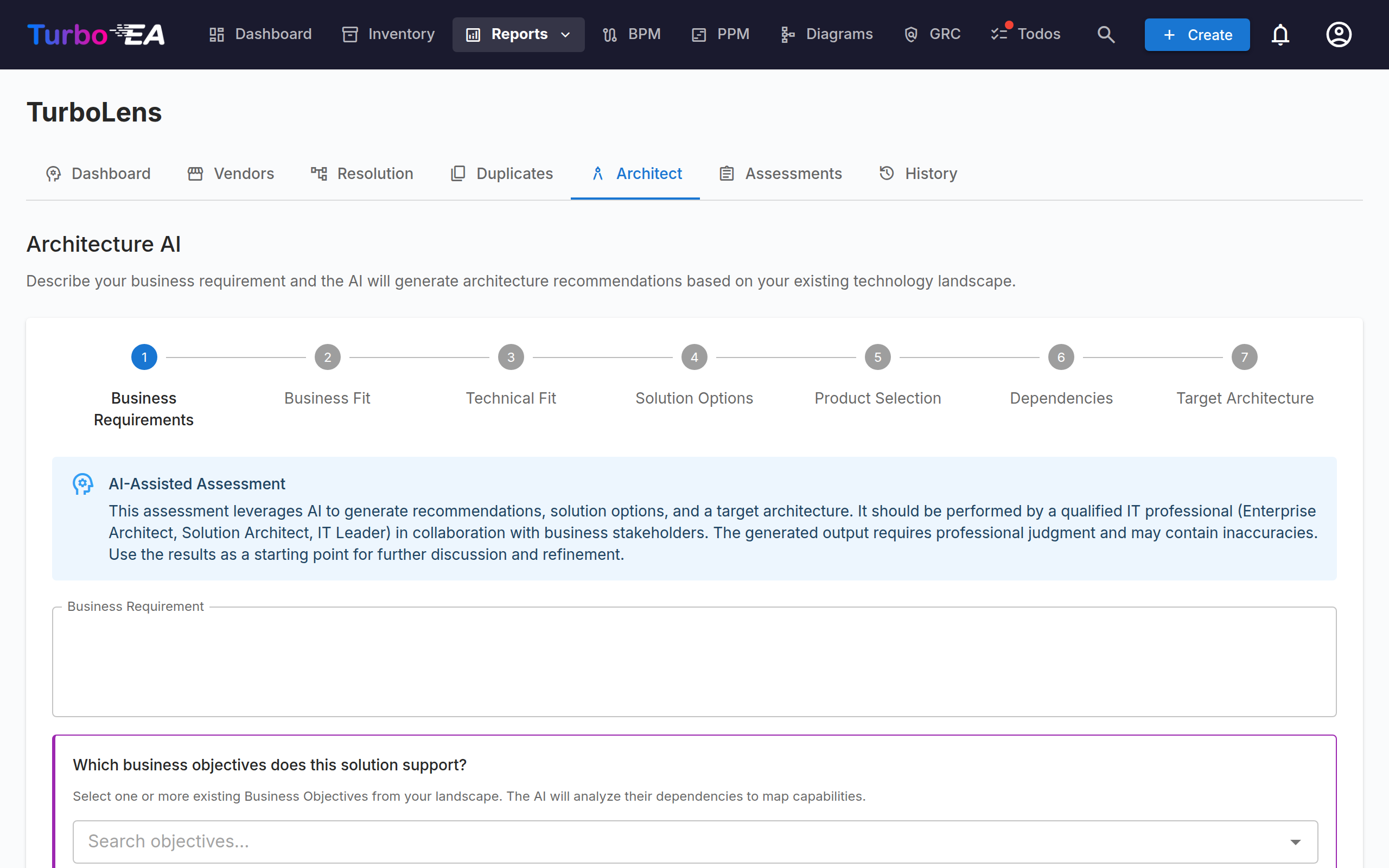
The Architecture AI is a 5-step guided wizard that generates architecture recommendations based on your existing landscape. It links your business objectives and capabilities to concrete solution proposals, gap analysis, dependency mapping, and a target architecture diagram.
A stepper at the top tracks your progress through the five stages: Requirements, Business Fit, Technical Fit, Solution, and Target Architecture. You can click any previously-reached step to navigate back and review earlier phases — all downstream data is preserved and only cleared when you actively re-submit a phase. Your progress is saved automatically in the browser session, so you can navigate away and return without losing your work. You can also save assessments to the database and resume them later (see Save & Resume below). Click New Assessment to start a fresh analysis at any time.
Step 1: Requirements
Enter your business requirement in natural language (e.g., "We need a customer self-service portal"). Then:
- Select Business Objectives — Choose one or more existing Objective cards from the autocomplete dropdown. This grounds the AI's analysis in your strategic goals. At least one objective is required.
- Select Business Capabilities (optional) — Choose existing Business Capability cards or type new capability names. New capabilities appear as blue chips labeled "NEW: name". This helps the AI focus on specific capability areas.
Click Generate Questions to proceed.
Step 2: Business Fit (Phase 1)
The AI generates business clarification questions tailored to your requirement and selected objectives. Questions come in different types:
- Text — Free-form answer fields
- Single choice — Click one option chip to select
- Multi choice — Click multiple option chips; you can also type a custom answer and press Enter
Each question may include context explaining why the AI is asking ("Impact" note). Answer all questions and click Submit to proceed to Phase 2.
Step 3: Technical Fit (Phase 2)
The AI generates technical deep-dive questions based on your Phase 1 answers. These may include NFR (non-functional requirement) categories such as performance, security, or scalability. Answer all questions and click Analyse Capabilities to generate solution options.
Step 4: Solution (Phase 3)
This step has three sub-phases:
3a: Solution Options
The AI generates multiple solution options, each presented as a card with:
| Element | Description |
|---|---|
| Approach | Buy, Build, Extend, or Reuse — color-coded chip |
| Summary | Brief description of the approach |
| Pros & Cons | Key advantages and disadvantages |
| Estimates | Estimated cost, duration, and complexity |
| Impact Preview | New components, modified components, retired components, and new integrations that this option would introduce |
Click Select on the option you want to pursue. If you return to this step after selecting an option, the previously chosen option is visually highlighted with a border and a "Selected" badge so you can easily identify your current choice.
3b: Gap Analysis
After selecting an option, the AI identifies capability gaps in your current landscape. Each gap shows:
- Capability name with urgency level (critical/high/medium)
- Impact description explaining why this gap matters
- Market recommendations — Ranked product recommendations (gold #1, silver #2, bronze #3) with vendor, reasoning, pros/cons, estimated cost, and integration effort
Select the products you want to include by clicking on the recommendation cards (checkboxes appear). Click Analyse Dependencies to proceed.
3c: Dependency Analysis
After selecting products, the AI identifies additional infrastructure, platform, or middleware dependencies required by your selections. Each dependency shows:
- Need with urgency level
- Reason explaining why this dependency is required
- Options — Alternative products to fulfill the dependency, with the same detail as gap recommendations
Select dependencies and click Generate Capability Map to produce the final target architecture.
Step 5: Target Architecture
The final step generates a comprehensive capability mapping:
| Section | Description |
|---|---|
| Summary | High-level narrative of the proposed architecture |
| Capabilities | List of matched Business Capabilities — existing ones (green) and newly proposed ones (blue) |
| Proposed Cards | New cards to be created in your landscape, shown with their card type icons and subtypes |
| Proposed Relations | Connections between proposed cards and existing landscape elements |
| Dependency Diagram | Interactive Layered Dependency View showing existing nodes alongside proposed nodes (dashed borders with green "NEW" badge). Pan, zoom, and explore the architecture visually |
From this step, you can click Choose Different to go back and select a different solution option, or Start Over to begin a completely new assessment.
AI-Assisted Assessment
This assessment leverages AI to generate recommendations, solution options, and a target architecture. It should be performed by a qualified IT professional (Enterprise Architect, Solution Architect, IT Leader) in collaboration with business stakeholders. The generated output requires professional judgment and may contain inaccuracies. Use the results as a starting point for further discussion and refinement.
Save & Resume
After reviewing the target architecture, you can save or commit your work:
Save Assessment — Persists a full snapshot of the assessment (all answers, selected options, gap analysis, dependencies, and target architecture) to the database. Saved assessments appear in the Assessments tab.
Resume a Saved Assessment — Non-committed assessments can be reopened into the interactive wizard with full state restored:
- From the Assessments tab, click the Resume button on any saved assessment row
- From the read-only Assessment Viewer, click Resume in the header
- The wizard restores to the exact phase and state where you left off, including all AI-generated questions, your answers, selected options, and product selections
- You can continue from where you stopped, choose a different approach, or commit to create an initiative
- Saving again updates the existing assessment (instead of creating a new one)
Full Snapshot
A saved assessment is a complete snapshot of your wizard session. As long as it has not been committed to an initiative, you can resume it, pick a different solution approach, and re-save as many times as needed.
Commit & Create Initiative — Converts the architecture proposal into real cards in your landscape:
- Initiative name defaults to the selected solution option title (editable before creation)
- Start/end dates for the initiative timeline
- Proposed New Cards with toggle switches to include or exclude individual cards, and edit icons to rename cards before creation. This list includes new Business Capabilities identified during the assessment.
- Proposed Relations with toggle switches to include or exclude
- A progress indicator shows creation status (initiative → cards → relations → ADR)
- On success, a link opens the new Initiative card
Architecture Guardrails
The system automatically enforces architectural integrity:
- Every new Application is linked to at least one Business Capability
- Every new Business Capability is linked to the selected Business Objectives
- Cards with no relations (orphans) are automatically removed from the proposal
Architecture Decision Record
A draft ADR is automatically created alongside the initiative with:
- Context from the capability mapping summary
- Decision capturing the selected approach and products
- Alternatives considered from non-selected solution options
Change Approach
Click Choose Different to return to the solution options and select a different approach. All your Phase 1 and Phase 2 answers are preserved — only the downstream data (gap analysis, dependencies, target architecture) is reset. After selecting a new option, the wizard proceeds through gap analysis and dependency analysis again. You can save the updated assessment or commit when ready.
Compliance scans
The Compliance scanner is a TurboLens analysis that produces compliance findings against the enabled regulations. The findings, lifecycle, manual-authoring path, promote-to-Risk flow and bulk actions are all documented in the dedicated Compliance guide — only the scan-trigger button itself lives behind the TurboLens flag.
Compliance findings can also be authored manually without an AI provider configured, so the Compliance tab works in deployments that don't have an LLM set up.
Analysis History
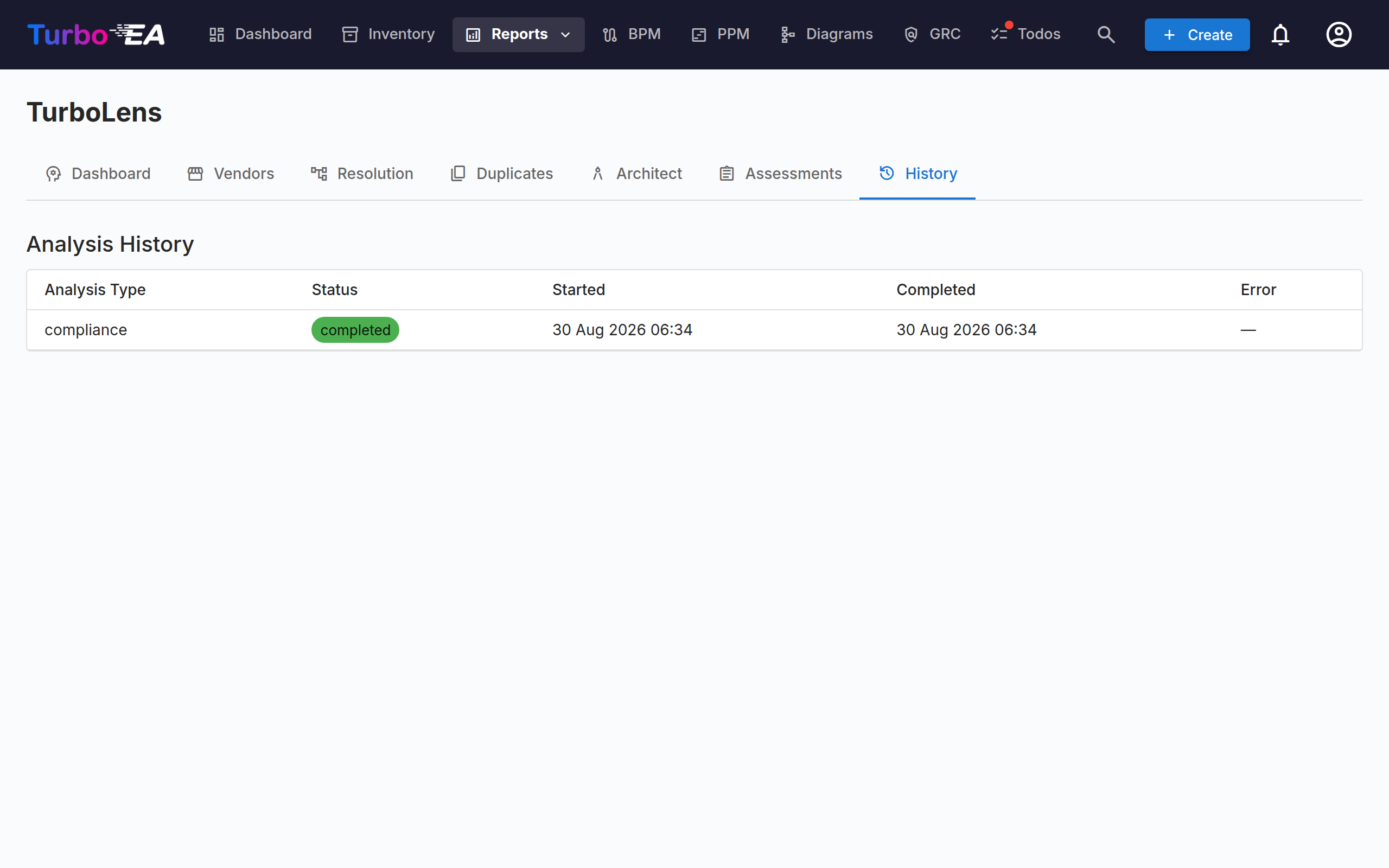
All analysis runs are tracked in TurboLens > History, showing:
- Analysis type (vendor analysis, vendor resolution, duplicate detection, modernization, architect, compliance)
- Status (running, completed, failed)
- Start and completion timestamps
- Error messages (if any)
Permissions
| Permission | Description |
|---|---|
turbolens.view |
View analysis results (granted to admin, bpm_admin, member) |
turbolens.manage |
Trigger analyses (granted to admin) |
compliance.view |
View compliance findings (granted to admin, bpm_admin, member, viewer) |
compliance.manage |
Trigger compliance scans and update finding status (granted to admin) |