Capability Catalogue
Turbo EA ships with the Business Capability Reference Catalogue — a curated, open catalogue of business capabilities maintained at github.com/vincentmakes/turbo-ea-capabilities. The Capability Catalogue page lets you browse this reference and create matching BusinessCapability cards in bulk, instead of typing them in one by one.
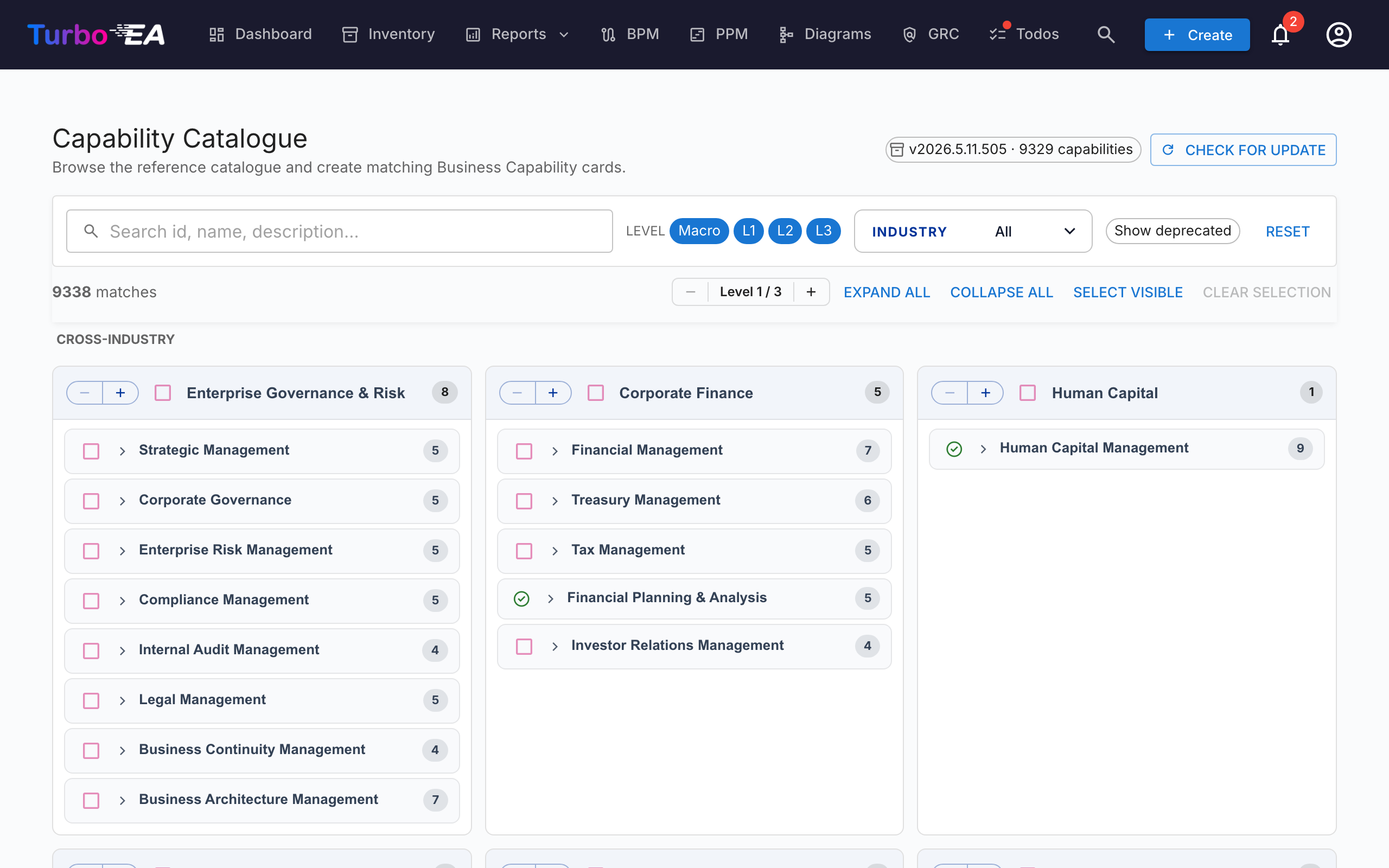
Opening the page
Click the user icon in the top-right corner of the app, then Capability Catalogue. The page is available to anyone with the inventory.view permission.
What you see
- Header — the active catalogue version, the number of capabilities it contains, and (for admins) controls to check for and fetch updates.
- Filter bar — full-text search across id, name, description and aliases, plus level chips (Macro → L1 → L4), an industry multi-select, and a "Show deprecated" toggle. Stays pinned just below the top navigation as you scroll.
- Action bar — match counters, the global level stepper (expand/collapse all L1s one level at a time), expand/collapse all, select-visible, clear selection. Sticky alongside the filter bar so the controls stay reachable even from deep inside an L1 subtree.
- L1 grid — one card per top-level capability, grouped under industry headings. Cross-Industry capabilities pin to the top; other industries follow alphabetically; capabilities with no industry tag fall into a General bucket at the end. The L1 name sits in a pale-blue header band; child capabilities are listed underneath, indented with a faint vertical rail to convey depth — the same hierarchy idiom used elsewhere in the app, so the page doesn't carry its own visual identity. Names wrap to multiple lines instead of being truncated. Each L1 header also exposes its own
−/+stepper pill:+opens the next level of descendants for that L1 only,−closes the deepest open level. The two buttons are always visible (the inactive direction goes disabled), the action is scoped to that one L1 — other branches stay put — and the global level stepper at the top of the page is unaffected. - Back-to-top button — once you've scrolled past the header, a circular floating arrow appears in the bottom-right corner. Click it to glide back to the top of the page. It auto-slides up to clear the Create N capabilities sticky bar whenever you have capabilities selected, so the two never overlap.
Selecting capabilities
Tick the checkbox next to any capability to add it to the selection. Selection cascades down the subtree in both directions but never touches ancestors:
- Ticking an unselected capability adds it plus every selectable descendant.
- Unticking a selected capability removes it plus every selectable descendant.
So unticking a single child only removes that child and what's below — its parent and siblings stay selected. Unticking a parent removes the whole subtree in one action. To assemble an "L1 + a couple of leaves" selection, pick the L1 (which seeds the whole subtree) and then untick the L2/L3 capabilities you don't want — the L1 stays selected and its checkbox stays ticked.
The page picks up the app-wide light/dark theme automatically — dark mode renders the same neutral layout on #1e1e1e paper with lifted-lavender text and accents.
Capabilities that already exist in your inventory appear with a green check icon instead of a checkbox. They cannot be selected — you can never create the same Business Capability twice through the catalogue. Matching prefers the attributes.catalogueId stamp left by a previous import (so the green tick survives display-name edits) and falls back to a case-insensitive display-name match for cards you created by hand. A name that two catalogue entries share — the catalogue repeats some names in different branches — never matches by name; such an entry is recognised by its catalogueId only.
Mass-creating cards
When you have one or more capabilities selected, a sticky Create N capabilities button appears at the bottom of the page. It uses the regular inventory.create permission — if your role doesn't allow card creation, the button is disabled.
On confirmation, Turbo EA:
- Creates one
BusinessCapabilitycard per selected catalogue entry. - Preserves the catalogue hierarchy automatically — when both the parent and the child are selected (or the parent already exists locally), the new child card's
parent_idis wired to the right card. - Skips existing matches silently. The result dialog shows how many were created and how many were skipped.
- Stamps each new card's
attributeswithcatalogueId,catalogueVersion,catalogueImportedAt, andcapabilityLevelso you can trace where it came from. - Creates each card the way the card form does, so it gets a History entry, its level in your own hierarchy (
capabilityLevelfollows the card's position — a capability imported without its catalogue parent is an L1 root card), a reference number when Business Capability uses automatic references, and a data-quality score. An entry whose name another Business Capability card already uses at the same level is reported and not imported, together with the entries beneath it; the result dialog lists them with the reason.
Re-running the same import is safe — it's idempotent.
Bidirectional linking. The hierarchy is repaired in both directions, so the order in which you import doesn't matter:
- Selecting only a child whose catalogue parent already exists as a card grafts the new child onto that existing parent automatically.
- Selecting only a parent whose catalogue children already exist as cards re-parents those children under the new card — regardless of where they currently sit (top-level or hand-nested under another card). The catalogue is the source of truth for hierarchy on import; if you'd prefer a different parent for a specific card, edit it after the import. The result dialog reports how many cards were re-linked alongside the created and skipped counts.
Macro Capabilities (Level 0)
Above the L1 / L2 / L3 / L4 tiers, the catalogue ships an additional Macro tier — a small set of business-level groupings that frame entire L1 families. Examples include Customer Engagement (frames Sales, Marketing, Service L1s) or Talent & Workforce (frames HR L1s).
Macros are first-class catalogue entries:
- They land in your inventory as
BusinessCapabilitycards withattributes.capabilityLevel = "Macro"and acatalogueIdprefixedMC-(e.g.MC-10). - They sit above their L1 children — the hierarchy depth limit relaxes from 5 to 6 to accommodate the extra layer (
Macro → L1 → L2 → L3 → L4 → L5). - When you import a Macro, any existing L1 children flagged as belonging to that Macro are automatically re-parented under the new card — the same bidirectional linking that applies between L1 and lower tiers.
- Macros never match existing cards by name — only by
catalogueId. This avoids accidental collisions with customer-named capability groups that happen to share a label with a catalogue Macro.
Macros are selectable from the catalogue page just like L1s — tick the checkbox and the subtree selects accordingly.
Detail view
Click any capability name to open a detail dialog showing its breadcrumb, description, industry, aliases, references, and a fully-expanded view of its subtree. Existing matches in the subtree are flagged with a green tick.
Updating the catalogue (admins)
The catalogue ships bundled as a Python dependency, so the page works offline / in airgapped deployments. Admins (admin.metamodel) can pull a newer version on demand:
- Click Check for update. Turbo EA queries PyPI's JSON API at
https://pypi.org/pypi/turbo-ea-capabilities/jsonand tells you whether a newer published version is available. PyPI is the source of truth at publish time, so a wheel that went live a few minutes ago is detected immediately. - If yes, click the Fetch v… button that appears. Turbo EA downloads the latest wheel from PyPI, extracts the catalogue payload from inside it, and stores it as a server-side override, taking effect immediately for all users.
The active catalogue version is always shown in the header chip. The override is preferred over the bundled package only when its version is strictly greater — so a Turbo EA upgrade that ships a newer bundled catalogue will continue to work as expected.
The PyPI index URL is configurable via the CAPABILITY_CATALOGUE_PYPI_URL environment variable for airgapped deployments or private mirrors.