Tags
The Tags feature (Admin > Metamodel > Tags tab) lets you create classification labels that users can apply to cards. Tags are organised into tag groups, each with its own selection mode, type restrictions and an optional mandatory flag that ties into the approval workflow and the data-quality score.
Tag groups
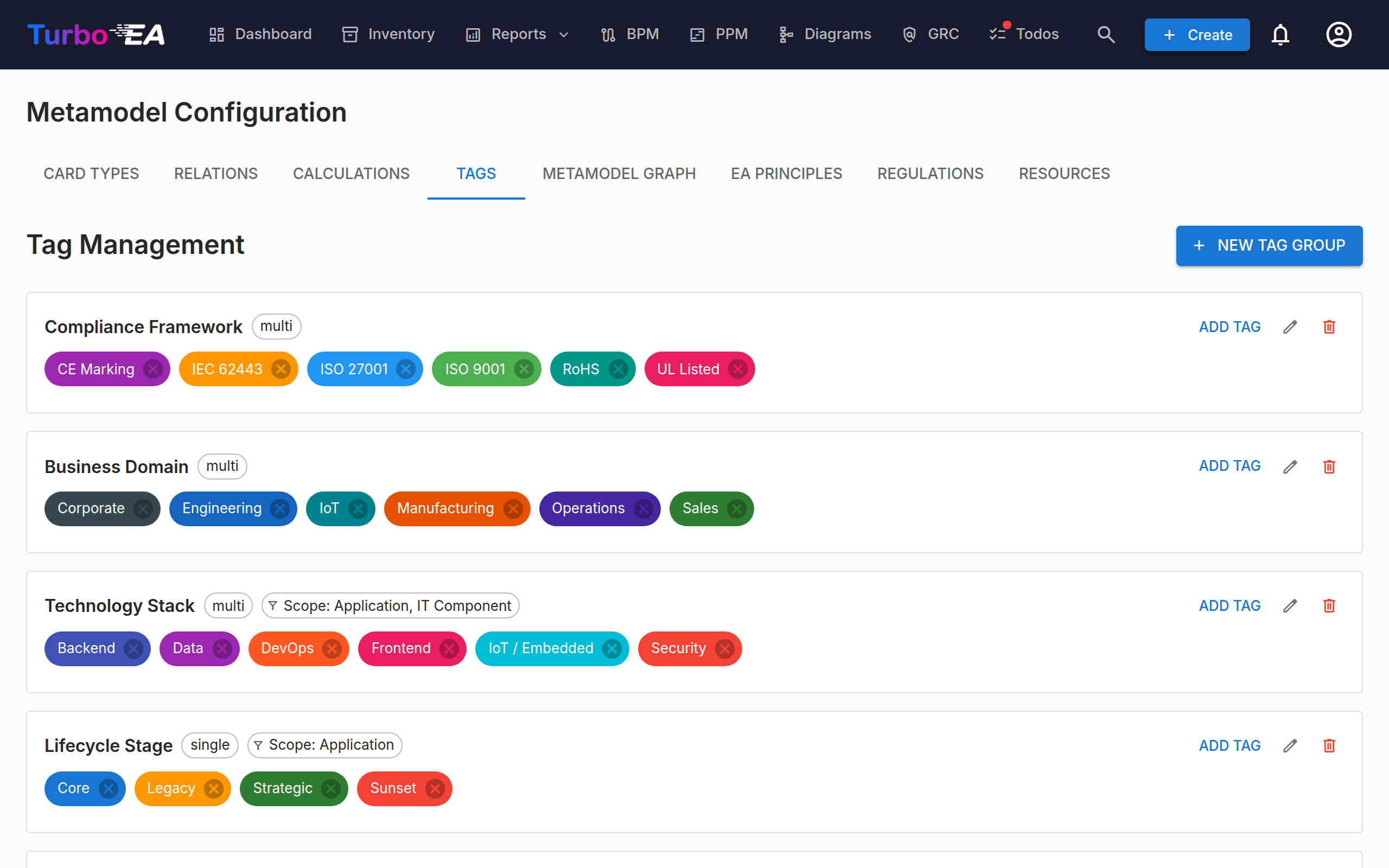
A tag group is a category of tags. For example, you might create groups like "Business Domain", "Compliance Framework" or "Team Ownership".
Creating a tag group
Click + New Tag Group and configure:
| Field | Description |
|---|---|
| Name | Display name shown on card detail, inventory filters and reports. |
| Description | Optional free-text explanation, visible when administrators manage the group. |
| Mode | Single select — one tag per card. Multi select — multiple tags per card. |
| Mandatory | When ticked, the group participates in the approval gate and data-quality score for every card type it applies to. See Mandatory tag groups below. |
| Restrict to types | Optional allow-list of card types. Empty means the group is available on every type; otherwise only the listed types see it in card detail, filters and portals. |
Managing tags
Within each group, you can add individual tags:
- Click + Add Tag inside a tag group.
- Enter the tag name.
- Optionally add a description — a short note explaining what the tag means, shown as a tooltip when administrators manage tags.
- Optionally set a color for visual distinction — the colour drives the chip background on card detail, inventory, reports and web portals.
Tags appear on card detail pages in the Tags section, where users with the right permission can apply or remove them.
Type restrictions
Setting Restrict to types on a tag group scopes it everywhere at once:
- Card detail — the group and its tags only show on matching card types.
- Inventory filter sidebar — the group's chip only surfaces in the
TagPickerwhen the inventory view is filtered to a matching type. - Web portals — the group is only advertised to portal readers when the portal surfaces a matching type.
- Reports — grouping/filter dropdowns only include the group for matching types.
The admin UI shows the scoped types as small chips on each tag group so you can see the scope at a glance.
Mandatory tag groups
Flagging a tag group as Mandatory turns it into a governance requirement: every card the group applies to must carry at least one tag from the group.
Approval gate
A card cannot move to Approved while any applicable mandatory tag group is unsatisfied. Trying to approve returns an approval_blocked_mandatory_missing error and the card detail page lists which groups are missing. Two refinements keep the gate safe:
- A group only applies to a card if its Restrict to types list is empty or includes the card's type.
- A mandatory group that has no tags configured yet is silently skipped — this prevents an unreachable approval gate from an incomplete admin setup.
Once you add the required tags, the card can be approved normally.
Data-quality contribution
Applicable mandatory tag groups also feed into the card's data-quality score. Each satisfied group raises the score alongside the other mandatory items (required fields, mandatory relation sides) that make up the completeness calculation.
Visual indicators
Mandatory groups are marked with a Mandatory chip in the admin list and on the card detail Tags section. Missing required tags show up in the approval-status banner and in the data-quality ring tooltip so users know exactly what to add.
Permissions
| Permission | What it allows |
|---|---|
tags.manage |
Create, edit and delete tag groups and tags in the admin UI, and apply/remove tags on any card regardless of other permissions. |
inventory.edit + card.edit |
Apply or remove tags on cards the user has edit access to (via app role or stakeholder role on that specific card). |
tags.manage is granted to the admin role by default. inventory.edit belongs to admin, bpm_admin and member; card.edit is granted through the card's own stakeholder role assignments.
Viewers can see tags but cannot change them.
Where tags appear
- Card detail — the Tags section lists applicable groups and the tags currently attached. Mandatory groups show a chip; restricted groups only show when the card's type matches.
- Inventory filter sidebar — a grouped
TagPickerlets you filter the inventory grid by one or more tags. Groups and tags are filtered to the current type scope. - Reports — tag-based slicing is available in the portfolio, matrix and other reports that support grouping/filter dimensions.
- Web portals — portal editors can expose tag-based filters to anonymous readers so external consumers can slice public landscapes the same way.
- Create / edit dialogs — the same
TagPickershows up when you create a new card so the required tags can be set up-front, which is especially useful for mandatory groups.