MCP Integration (AI Tool Access)
Turbo EA includes a built-in MCP server (Model Context Protocol) that allows AI tools — such as Claude Desktop, GitHub Copilot, Cursor, and VS Code — to query and update your EA data directly. AI tools can also upload artifacts (spreadsheets, BPMN diagrams, DrawIO diagrams, freeform documents) and turn them into cards, relations and diagrams that fit the existing metamodel. Users authenticate through your existing SSO provider, and every action respects their individual permissions.
This feature is optional and does not start automatically. It requires SSO to be configured, the MCP profile to be activated in Docker Compose, and an admin to toggle it on in the settings UI.
How It Works
AI Tool (Claude, Copilot, etc.)
    │
    │  MCP protocol (streamable HTTP)
    ▼
Turbo EA MCP Server (:8001, internal)
    │
    │  OAuth 2.1 with PKCE
    │  delegates to your SSO provider
    ▼
Turbo EA Backend (:8000)
    │
    │  Per-user RBAC
    ▼
PostgreSQL
- A user adds the MCP server URL to their AI tool.
- On first connection, the AI tool opens a browser window for SSO authentication.
- After login, the MCP server issues its own access token (backed by the user's Turbo EA JWT).
- The AI tool uses this token for all subsequent requests. Tokens refresh automatically.
- Every query goes through the normal Turbo EA permission system — users only see data they have access to.
Prerequisites
Before enabling MCP, you must have:
- SSO configured and working — MCP delegates authentication to your SSO provider (Microsoft Entra ID, Google Workspace, Okta, or generic OIDC). See the Authentication & SSO guide.
- HTTPS with a public domain — The OAuth flow requires a stable redirect URI. Deploy behind a TLS-terminating reverse proxy (Caddy, Traefik, Cloudflare Tunnel, etc.).
Setup
Step 1: Start the MCP service
The MCP server is an opt-in Docker Compose profile. Add --profile mcp to your startup command:
docker compose --profile mcp up --build -d
This starts a lightweight Python container (port 8001, internal only) alongside the backend and frontend. Nginx proxies /mcp/ requests to it automatically.
Step 2: Configure environment variables
Add these to your .env file:
TURBO_EA_PUBLIC_URL=https://your-domain.example.com
MCP_PUBLIC_URL=https://your-domain.example.com/mcp
| Variable | Default | Description |
|---|---|---|
TURBO_EA_PUBLIC_URL |
http://localhost:8920 |
The public URL of your Turbo EA instance |
MCP_PUBLIC_URL |
http://localhost:8920/mcp (docker compose) |
The public URL of the MCP server (used in OAuth redirect URIs). When running the container standalone, the code default is http://localhost:8001 |
MCP_PORT |
8001 |
Internal port for the MCP container (rarely needs changing) |
Step 3: Add the OAuth redirect URI to your SSO app
In your SSO provider's app registration (the same one you set up for Turbo EA login), add this redirect URI:
https://your-domain.example.com/mcp/oauth/callback
This is required for the OAuth flow that authenticates users when they connect from their AI tool.
Step 4: Enable MCP in admin settings
- Go to Settings in the admin area and select the AI tab.
- Scroll to the MCP Integration (AI Tool Access) section.
- Toggle the switch to enable MCP.
- The UI will show the MCP Server URL and setup instructions to share with your team.
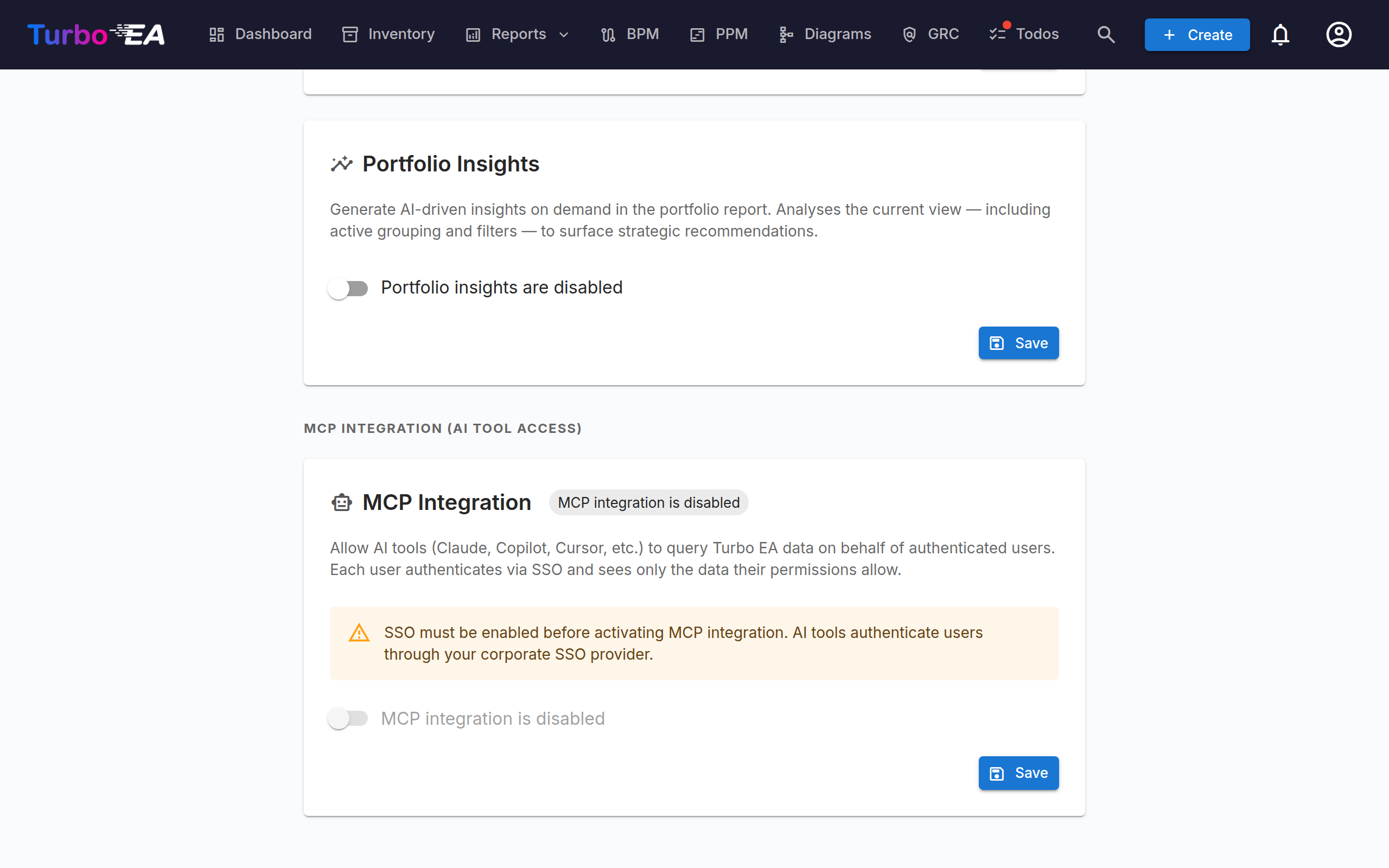
Warning
The toggle is disabled if SSO is not configured. Set up SSO first.
Connecting AI Tools
Once MCP is enabled, share the MCP Server URL with your team. Each user adds it to their AI tool:
Claude Desktop
- Open Settings > Connectors > Add custom connector.
- Enter the MCP server URL:
https://your-domain.example.com/mcp - Click Connect — a browser window opens for SSO login.
- After authentication, Claude can query your EA data.
VS Code (GitHub Copilot / Cursor)
Add to your workspace .vscode/mcp.json:
{
  "servers": {
    "turbo-ea": {
      "type": "http",
      "url": "https://your-domain.example.com/mcp"
    }
  }
}
Use https://your-domain.example.com/mcp as the endpoint. The older doubled form https://your-domain.example.com/mcp/mcp still works, so existing connectors keep functioning without changes.
Local Testing (stdio mode)
For local development or testing without SSO/HTTPS, you can run the MCP server in stdio mode — Claude Desktop spawns it directly as a local process.
1. Install the MCP server package:
pip install ./mcp-server
2. Add to your Claude Desktop config (claude_desktop_config.json):
{
  "mcpServers": {
    "turbo-ea": {
      "command": "python",
      "args": ["-m", "turbo_ea_mcp", "--stdio"],
      "env": {
        "TURBO_EA_URL": "http://localhost:8000",
        "TURBO_EA_EMAIL": "your@email.com",
        "TURBO_EA_PASSWORD": "your-password"
      }
    }
  }
}
In this mode, the server authenticates with email/password and refreshes the token automatically in the background.
Available Capabilities
The MCP server exposes 51 tools across two groups: 32 read tools that query EA data and 19 write tools (14 additive, 5 destructive) that create and maintain cards, relations, diagrams, risks, ADRs and more — including turning artifacts an AI tool has in its own context (spreadsheets, BPMN XML, DrawIO XML, documents, images) into structured EA data. Every tool carries MCP ToolAnnotations (read-only / destructive / idempotent hints) so connectors can surface destructiveness in their UI.
Dry-run safety on writes
Every write tool defaults to dry_run=true. In this mode the backend runs every validator and resolver, builds the complete plan, then rolls back the transaction so nothing is persisted. The AI tool returns the preview to the user; only after explicit confirmation should it call the tool again with dry_run=false to commit. This prevents an enthusiastic agent from quietly seeding hundreds of cards on a misinterpreted spreadsheet.
Read tools
The server exposes 32 read tools grouped into eight clusters.
Cards & metamodel
| Tool | Description |
|---|---|
search_cards |
Search and filter cards by type, status, or free text |
get_card |
Get full details of a card by UUID |
get_card_relations |
Get all relations connected to a card |
get_card_hierarchy |
Get ancestors and children of a card |
list_card_types |
List all card types in the metamodel; each type's category is the key of its category (architecture layer) |
get_relation_types |
List relation types, optionally filtered by card type |
resolve_card_refs |
Pre-validate name-based card references (name → UUID) before a bulk import — resolves only, never writes |
analyze_impact |
Dependency blast-radius analysis for a proposed change to a card |
Dashboards
| Tool | Description |
|---|---|
get_dashboard |
KPI dashboard (counts, data quality, approvals, activity) |
get_landscape |
Cards of one type grouped by a related type |
GRC — Risk Register
| Tool | Description |
|---|---|
list_risks |
Paginated, filterable EA risk listing (TOGAF Phase G) |
get_risk |
Single risk detail with linked cards + audit trail |
get_risk_metrics |
KPIs + 4×4 initial / residual probability × impact matrices |
get_card_risks |
All risks currently linked to a specific card |
GRC — Compliance
| Tool | Description |
|---|---|
list_compliance_findings |
Compliance findings bundled by regulation |
get_compliance_overview |
Compliance scores + per-regulation status matrix + last-scan metadata |
Governance & Delivery
| Tool | Description |
|---|---|
list_principles |
Published EA principles (statement, rationale, implications) |
list_adrs |
Architecture Decision Records, filterable by initiative / status |
get_adr |
Single ADR with sections, linked cards, signature trail |
list_soaws |
Statements of Architecture Work for an initiative |
Reports
| Tool | Description |
|---|---|
get_portfolio_report |
Bubble-chart data for a card type (functional × technical fit by default) |
get_cost_treemap |
Treemap of card cost, optionally grouped by a related type |
get_capability_heatmap |
Hierarchical business-capability heatmap |
get_data_quality_report |
Per-card-type completeness breakdown |
Card context
| Tool | Description |
|---|---|
get_card_stakeholders |
Users + roles assigned to a card |
get_card_comments |
Threaded comments on a card |
get_card_documents |
Document links attached to a card |
get_card_logo |
A card's logo: mime, size and a sha256 of the stored bytes, so a write can be verified without transferring the image (pass include_image when you do want it) |
list_available_icons |
Search the built-in brand-icon pack for a slug to pass to set_card_logos |
Diagrams
| Tool | Description |
|---|---|
list_diagrams |
List free-draw (DrawIO) diagrams, optionally filtered to one card |
get_diagram |
Fetch a single diagram by id, including its DrawIO XML |
Audit & change history
| Tool | Description |
|---|---|
get_change_history |
Query the mutation-batch ledger (by batch id, actor, tool, or origin) to reconstruct exactly what a previous MCP commit changed |
All tools are bound by the authenticated user's RBAC — a viewer will simply get an empty list (or 403) for areas they cannot see; nothing on the MCP layer needs configuring per tool.
Write tools
The server exposes 19 write tools, each annotated as additive (creates or extends data) or destructive (modifies or removes existing data) so connectors can warn accordingly.
Additive (14)
| Tool | Description |
|---|---|
create_cards_bulk |
Create many cards in one call (e.g. spreadsheet rows). Supports same-batch parent references by name with server-side topological sort. |
transition_card_lifecycle |
Move a card through approval or lifecycle phases. |
create_risks |
Create entries in the EA Risk Register. |
update_risks |
Update Risk Register entries (fields, linked cards). |
add_card_comment |
Post a comment on a card — a non-destructive, reviewable note instead of mutating fields. |
create_soaw |
Create a Statement of Architecture Work for an initiative. |
assign_stakeholders |
Assign or remove stakeholder roles on cards. |
update_cards_bulk |
Field-level patches on many cards in one call. |
create_adr |
Create an Architecture Decision Record. |
update_adr |
Update an ADR (title, sections, status, linked cards). |
sign_adr |
Sign an ADR (requires the adr.sign permission; otherwise returns a UI deep-link to sign in the browser). |
create_diagram |
Create a free-form DrawIO diagram with optional links to existing cards. |
import_bpmn |
Save a BPMN 2.0 XML diagram against an existing Business Process card. If no card matches the given name, the tool returns a card_not_found error pointing the agent at create_cards_bulk — this forces the agent to create the card explicitly with description, subtype and attributes first, instead of taking a shortcut that lands a sparse card. |
set_card_logos |
Set the custom logo on many cards at once — the bulk way to put product marks on an Application inventory. Three ways to supply the image, one per row: a built-in icon_slug (resolved server-side, nothing transferred), an image_url the MCP server downloads for you from an allowlisted icon host, or image_base64 from the agent's own context. The packs are a shortcut, not the source of truth — a dry run lists the slugs they do not carry under unknown_icon_slugs and fetches every image_url, so a missing brand or a dead link is reported before anything is written rather than left as a logo nobody could set. mime is optional and sniffed from the bytes. PNG/JPEG/WebP/GIF only, 1 MB each. Each row echoes a sha256 so the caller can prove what landed. Use clear_card_logos to remove one. |
Destructive (5)
| Tool | Description |
|---|---|
upsert_relations_bulk |
Create or delete relations between cards. Source / target / type are validated against the metamodel. Deletion is refused unless the operator opts in (see guardrails). |
archive_cards |
Soft-delete cards. Recoverable — archived cards can be restored for 30 days before auto-purge. |
update_diagram |
Replace a diagram's DrawIO XML, name, or card links. |
rollback_batch |
Reverse the writes performed under a previous mutation batch — card, relation, risk, stakeholder-role, tag and draft-decision writes; todos and notifications are left in place. |
clear_card_logos |
Remove the custom logo from cards, falling them back to their card-type icon. Recoverable — set it again to restore. |
Artifact upload
A subset of the write tools (create_cards_bulk, upsert_relations_bulk, create_diagram, import_bpmn) lets an AI agent turn artifacts into structured EA data. The agent reads the source file from its own context (multimodal vision, file attachments), extracts structured rows, and calls these tools. The MCP server itself never parses files — it expects already-structured input.
Typical workflow when a user shares a spreadsheet with the AI agent:
- The agent calls
list_card_typesandget_relation_typesto understand the metamodel. - The agent parses the spreadsheet (in its own context, not in MCP) and builds row dicts.
- The agent calls
create_cards_bulk(cards=…, dry_run=True)and shows the preview to the user. - The user confirms; the agent calls again with
dry_run=Falseto commit. - If relation columns are present, the agent then calls
upsert_relations_bulkwith the same dry-run / confirm cycle.
Write-tool guardrails
Defense in depth on top of dry-run, so an LLM mishap can't cause mass damage:
- Per-call size caps. The MCP write tools enforce a much smaller cap than the underlying Excel-importer endpoints: 200 rows for
create_cards_bulk, 500 ops forupsert_relations_bulk. Big enough for any realistic single artifact upload, small enough that a dry-run preview is still scannable. - No relation deletion by default.
upsert_relations_bulkrefusesaction: "delete"ops — to remove relations, use the web UI where the action is captured under the user's identity. Operators can opt in by settingMCP_ALLOW_RELATION_DELETE=true. - Kill switch.
MCP_WRITES_ENABLED=falseturns off all 19 write tools without redeploying code. The 32 read tools keep working. - Logo fetching is allowlisted. The built-in icon packs cannot cover every product a customer runs, and an assistant is often sandboxed with no route to the web, so
set_card_logosaccepts animage_urland the MCP server fetches it. Onlyhttps, only the hosts inMCP_LOGO_FETCH_HOSTS, only a public address, at most two redirects (each re-checked), at most 1 MB read as a stream, and the bytes must carry a real PNG/JPEG/WebP/GIF signature. The fetch happens at the MCP edge, never in the backend, and the image is then uploaded through the ordinary route — so a URL chosen by an LLM never reaches the process holding the database.MCP_LOGO_FETCH_ENABLED=falseswitches it off. - Audit origin tag. Every backend request from the MCP server carries an
X-Turbo-EA-Origin: mcpheader. Events emitted from those requests are taggedorigin: "mcp"in the audit-log payload, so admins can filter MCP-driven writes out of the timeline distinct from web-UI actions. - Mutation batches. Every MCP write call opens a mutation batch before any writes; every event emitted during the call is stamped with the batch id. Admins (or the
get_change_historytool) can reconstruct the full per-event diff of a commit from one id, androllback_batchcan reverse it. Commits aboveMCP_BATCH_CONFIRMATION_THRESHOLDrows must pass back the one-shotconfirm_tokenthe prior dry-run returned. The backend checks it when the commit's batch opens, before anything is written: it must come from a dry-run of the same tool by the same user less than 15 minutes earlier, and it authorises a single commit. Every bulk write tool follows this preview → confirm cycle:create_cards_bulk,update_cards_bulk,archive_cards,upsert_relations_bulk,assign_stakeholders,create_risks,update_risks,set_card_logos,clear_card_logos. - No hard delete. The toolset deliberately omits permanent card deletion.
archive_cardsandupdate_cards_bulkare exposed, but archiving is a recoverable soft-delete (30-day restore window) and both are destructiveness-annotated and dry-run-gated. Adding any tool that performs an irreversible mutation (hard delete, force-purge) would require an explicit design review.
The six guardrail environment variables on the MCP container:
| Variable | Default | Effect |
|---|---|---|
MCP_WRITES_ENABLED |
true |
Master switch for write tools. false → read-only MCP. |
MCP_MAX_CARDS_PER_CALL |
200 |
Hard cap on create_cards_bulk / update_cards_bulk rows per request. |
MCP_MAX_RELATIONS_PER_CALL |
500 |
Hard cap on upsert_relations_bulk operations per request. |
MCP_MAX_LOGOS_PER_CALL |
50 |
Hard cap on set_card_logos rows per request. Lower than the card cap because each logo is its own upload and carries image bytes. |
MCP_ALLOW_RELATION_DELETE |
false |
When true, upsert_relations_bulk accepts action: "delete" ops. |
MCP_LOGO_FETCH_ENABLED |
true |
When true, set_card_logos may take an image_url: the MCP server downloads the image and uploads it through the ordinary route, so every permission, size and format check still applies. Set to false to refuse the URL path entirely — icon slugs and pasted bytes keep working. |
MCP_LOGO_FETCH_HOSTS |
(built-in) | Comma-separated hosts a logo may be fetched from, exact match. Defaults to raw.githubusercontent.com, cdn.jsdelivr.net, cdn.simpleicons.org, upload.wikimedia.org — public icon hosting, where the request carries a file name and nothing about your landscape. A domain-to-logo lookup service can be added, at the cost of telling it which vendors you run. |
MCP_BATCH_CONFIRMATION_THRESHOLD |
20 |
Commits touching more rows than this require the confirm_token from a prior dry-run. The backend applies its own limit of 20 rows whatever this is set to, so this value can only lower the limit, never raise it. |
MCP_REQUIRE_DRYRUN_FIRST |
true |
When true, the MCP server refuses a commit above the threshold that carries no confirm_token with an explanatory error, before calling the backend. false switches off only that early error: the backend still requires the token on every commit above 20 rows. |
Resources
| URI | Description |
|---|---|
turbo-ea://types |
All card types in the metamodel |
turbo-ea://relation-types |
All relation types |
turbo-ea://dashboard |
Dashboard KPIs and summary statistics |
Guided Prompts
| Prompt | Description |
|---|---|
analyze_landscape |
Multi-step analysis: dashboard overview, types, relationships |
find_card |
Search for a card by name, get details and relations |
explore_dependencies |
Map what a card depends on and what depends on it |
Permissions
| Role | Access |
|---|---|
| Admin | Configure MCP settings (admin.mcp permission). Full read + write through MCP. |
| All authenticated users | Read access governed by their existing RBAC. Write tools require the matching backend permissions — inventory.create / inventory.edit / inventory.archive (cards), relations.manage (relations), diagrams.manage (diagrams), bpm.edit (BPMN), risks.manage (Risk Register), comments.create (comments), stakeholders.manage (stakeholders), soaw.create (SoAW), adr.create / adr.sign (ADRs). |
The admin.mcp permission controls who can manage MCP settings. It is only available to the Admin role by default. Custom roles can be granted this permission through the Roles administration page.
Data access through MCP — read or write — follows the same RBAC model as the web UI. If a user cannot create cards in the inventory UI, they cannot create them through MCP either; there are no separate MCP-specific data permissions.
Security
- SSO-delegated authentication: Users authenticate via their corporate SSO provider. The MCP server never sees or stores passwords.
- OAuth 2.1 with PKCE: The authentication flow uses Proof Key for Code Exchange (S256) to prevent authorization code interception.
- Per-user RBAC: Every MCP query — read or write — runs with the authenticated user's permissions. No shared service accounts.
- Dry-run by default on writes: Write tools default to a validate-and-rollback preview. The AI tool must explicitly call again with
dry_run=falsebefore anything is persisted, and every change is audited under the user's identity. - No file parsing in MCP: The MCP server itself does not accept PDFs, Excel files, images or other binary artifacts. The calling AI tool parses them in its own context and sends structured rows. This keeps the attack surface narrow and avoids exposing the server to malformed binary input.
- Token rotation: Access tokens expire after 1 hour. Refresh tokens last 30 days. Authorization codes are single-use and expire after 10 minutes.
- Internal-only port: The MCP container exposes port 8001 only on the internal Docker network. All external access goes through the Nginx reverse proxy.
Troubleshooting
| Issue | Solution |
|---|---|
| MCP toggle is disabled in settings | SSO must be configured first. Go to Settings > Authentication tab and set up an SSO provider. |
| "host not found" in Nginx logs | The MCP service is not running. Start it with docker compose --profile mcp up -d. The Nginx config handles this gracefully (502 response, no crash). |
| OAuth callback fails | Verify you added https://your-domain.example.com/mcp/oauth/callback as a redirect URI in your SSO app registration. |
| AI tool cannot connect | Check that MCP_PUBLIC_URL matches the URL accessible from the user's machine. Ensure HTTPS is working. |
| User gets empty results | MCP respects RBAC permissions. If a user has restricted access, they will only see the cards their role allows. |
| Connection drops after 1 hour | The AI tool should handle token refresh automatically. If not, reconnect. |